AutoPay
With AutoPay, a subscription is a single checkout call. After that, Ottu generates every billing cycle, charges the saved card, retries failed charges, emails the customer, and hosts a page where they manage their own subscription.
Building the integration? See AutoPay for developers.
- AutoPay is API-only. There is no AutoPay screen in the dashboard. A developer makes the integration through the API.
- KNET cannot pay renewals. The limit is on the payment gateway, not on the card: KNET as a gateway cannot charge a saved card later. Customers must pay with a gateway that can.
All limits are listed in Limits.
Compare
Why choose AutoPay over building it yourself?
Ottu runs the schedule, retries, emails, and customer page. You make one checkout call.
In the Build it yourself column, ✗ means your team would have to build and run this. With AutoPay, Ottu runs it for you.
How it works
What happens at each stage, and what you need to do.
Want to see setup for yourself? The AutoPay live demo creates a test subscription and takes its first payment on Ottu's sandbox.
Your customer signs up
Your customer pays the first charge, or saves a card for a free trial, and Ottu keeps the card.
Your part: Send them to checkout.
Learn more →Every billing date
Ottu emails a reminder before the charge, then charges the saved card.
Your part: Nothing
Learn more →If a payment fails
Ottu retries and asks your customer to pay. Ottu never cancels the subscription on its own.
Your part: Decide what to do if it stays Past Due.
Learn more →
Always available
Your customer's own page
Your customer can change their card, pay a balance, or cancel.
Your part: Optional. Send the page link at signup. Every Ottu email also includes it.
Learn more →What your customer sees
Your customer gets two things: emails and one private page. Ottu hosts both.
The emails
Ottu sends an upcoming-charge reminder, a payment-failed notice, and a final-failure notice. You can switch each one off, but only when you create the subscription, not afterwards. Emails go out in English or Arabic, chosen when the subscription is created. Reminders go out ahead of each charge:
| Billing frequency | Reminders | When |
|---|---|---|
| Monthly | 1 | About 3 days before |
| Yearly | 3 | About 31, 11, and 4 days before |
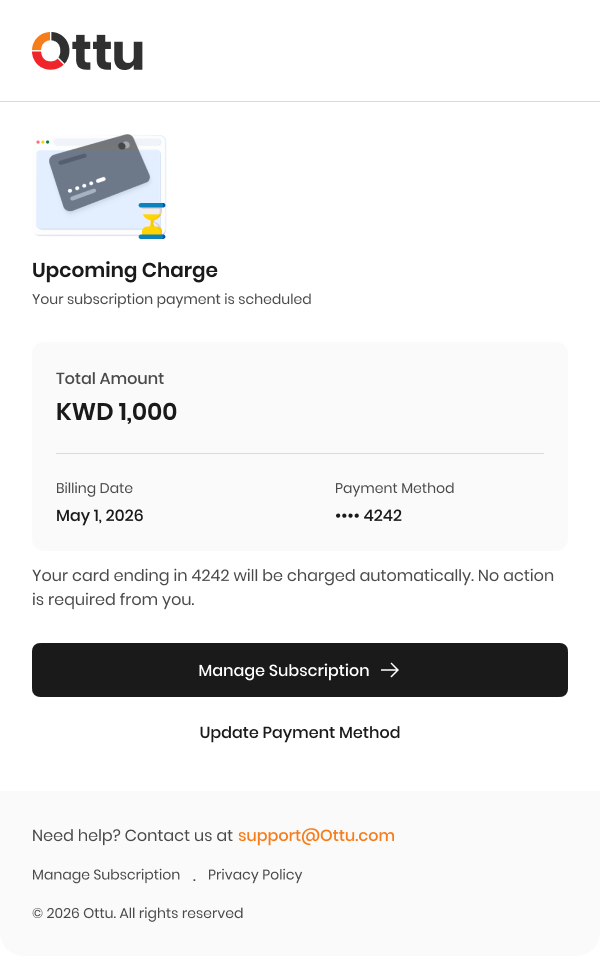
Upcoming charge
Payment failed
Final failure
The same email in Arabic
The final email may talk about suspended access. That describes your product. Ottu itself never suspends or cancels a subscription because a payment failed. Any decision about your customer's access to your product is yours.
The self-service page
Every subscription gets its own private page, reached through a private link. Treat it like a password: anyone holding the link can open the page. The link is in every email Ottu sends, and you can also send it yourself, for example at signup. Ottu hosts the page, keeps it in sync with the subscription, and shows it in English and Arabic.
From this page, a customer can:
- See their plan, status, and next charge date.
- Review billing history, including the next cycle, listed as Scheduled until it is charged.
- Add a card, or switch which saved card is active.
- Pay an outstanding balance.
- Cancel, or undo a pending cancellation.
What the page shows depends on the subscription's state:
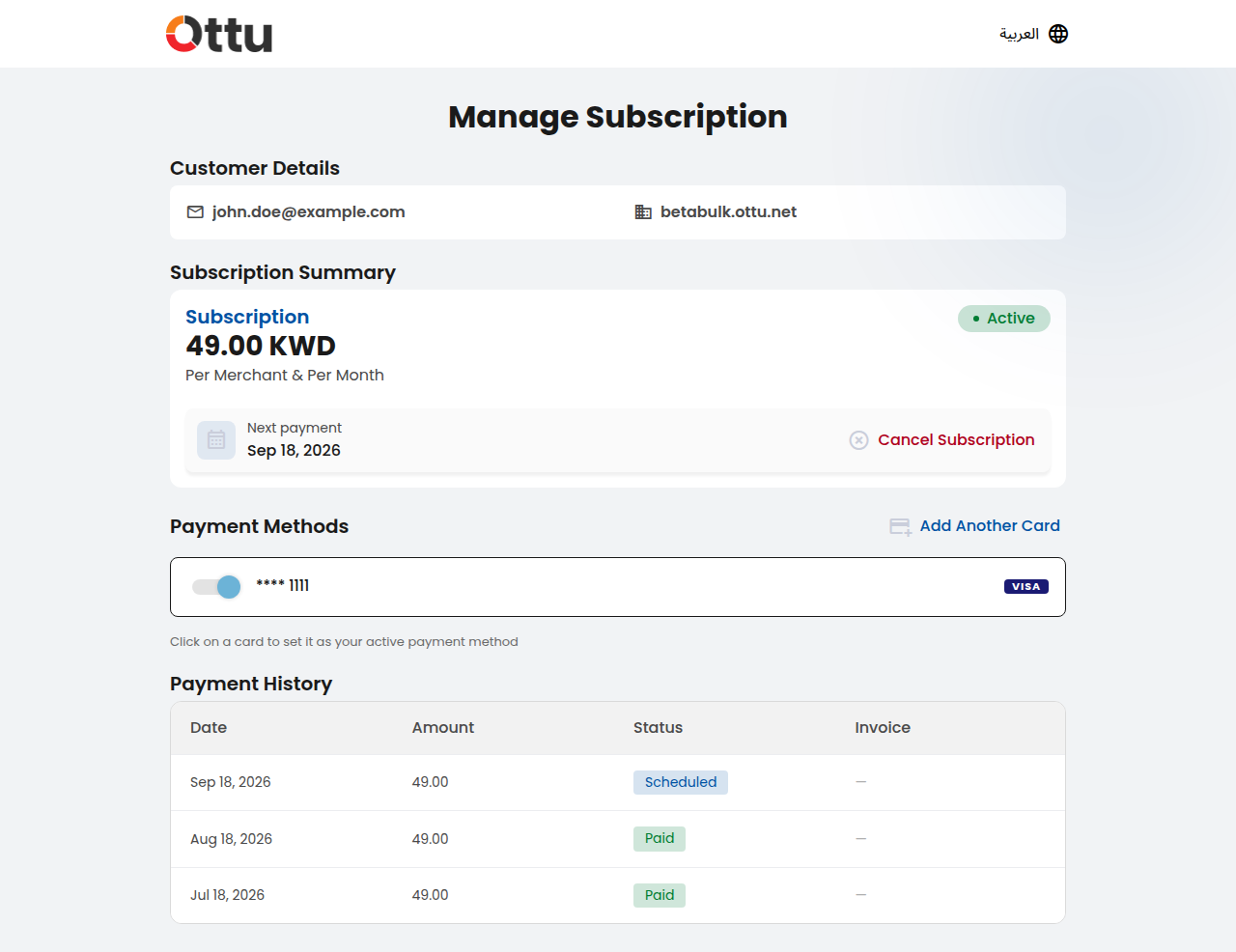
Active
Trialing
Cancellation pending
Past due
Expired
And these are the actions a customer can take:
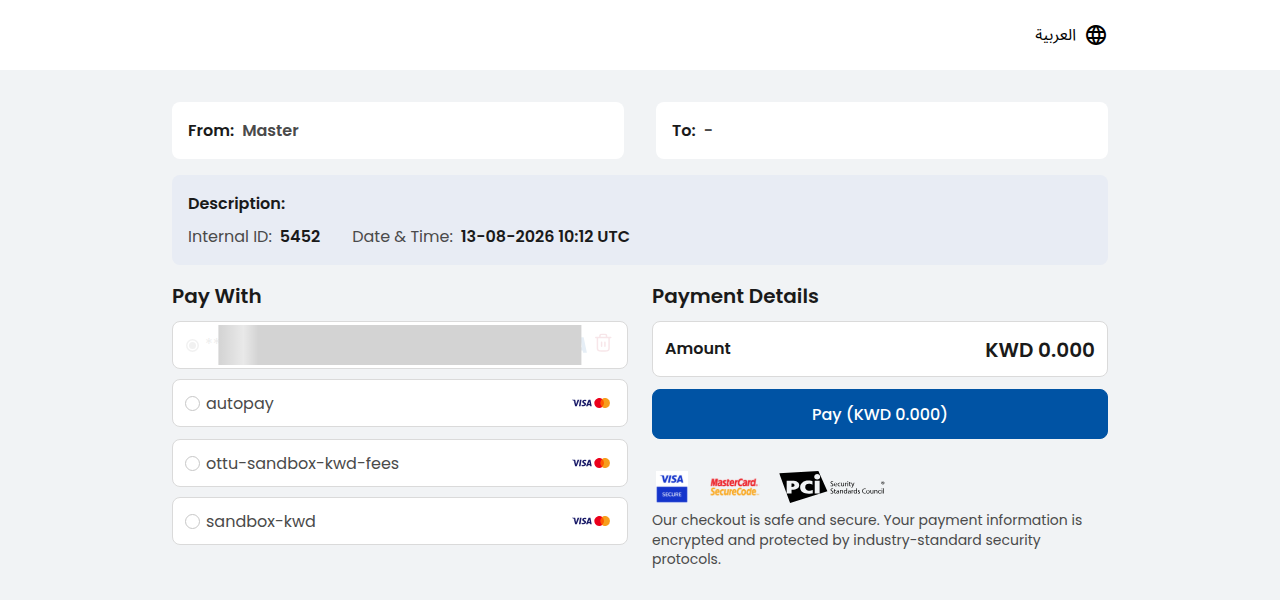
Add a card
Confirm a cancellation
Give a reason
Undo the cancellation
Payment confirmed
It never takes effect immediately. Only your team can cancel immediately, through the API. Undo is available while an active subscription's cancellation is pending.
A Past Due subscription is the exception. If a Past Due customer cancels, the subscription stays Past Due. When they pay the balance, it ends at once, with no further charge. If they never pay, it stays Past Due until your team cancels it.
Customers can hold several cards and switch the active one in a click. Switching to a new card keeps the old card, so an old card still explains what paid an earlier cycle.
The previous link stops working instantly, and the page shows "This link has expired". Ottu doesn't notify the customer. Links never expire on their own, so only a regeneration revokes one. Deliver the new link the same way you delivered the first, or the customer is locked out.
When a payment fails
- Four attempts by default. That is one initial charge plus three retries, about an hour apart. Your developer can set from 1 to 10 retries when they create the subscription. Ottu fixes the interval.
- The customer is emailed after each failed attempt while retries remain, so they can update their card.
- After the last attempt, the subscription moves to Past Due. The customer gets the final email with a link to pay.
- Paying the balance returns the subscription to Active.
It stays Past Due until the customer pays or your team cancels it. Build your own process for subscriptions that stay past due longer than you are comfortable with.
Lifecycle and billing cycles
A subscription moves through seven states. Canceled and Expired are final.
| State | What it means |
|---|---|
| Pending setup | Created and waiting for the first charge to resolve. |
| Trialing | The first charge was zero, so no money has moved. The first real charge comes at the next billing cycle. |
| Active | Billing normally. The latest cycle was paid. |
| Past Due | Every retry on a cycle failed. The subscription is not canceled. It waits for the balance to be paid. |
| Canceled | Billing has stopped. A customer's cancellation lands here at the end of the paid period. From Past Due, it lands here when the customer pays the balance, with no further charge. Your team's immediate cancel lands here at once. |
| Expired | Billing stopped because the subscription reached its end date. |
| Setup Failed | The customer never completed the first payment. Ottu doesn't retry it. Create a new subscription. |
Ottu creates billing cycles one at a time. The next cycle exists only once the current one is paid. Each cycle locks its amount when it is generated, so past cycles stay a reliable record of what was charged.
Anchor days
Every subscription bills on the same day of the month, called its anchor day. The start date sets it. One anchored on the 29th, 30th, or 31st moves to the last day of a shorter month, then returns to its anchor day. Here is a subscription anchored on the 31st:
| Cycle | Anchor day | Bills on | Why |
|---|---|---|---|
| January | 31st | Jan 31 | The anchor day exists in January. |
| February | 31st | Feb 28 (Feb 29 in a leap year) | February has no 31st, so the charge moves to the last day of the month. |
| March | 31st | Mar 31 | March has a 31st again. The anchor day never moved. |
Setting up AutoPay
Your developers call the API to create, look up, and cancel subscriptions. See Limits for what AutoPay does not do.
Before your first subscription, make sure you have:
- AutoPay enabled for your account. Ask Ottu support to turn it on.
- A support email. It appears on the customer's page and in the footer of every email Ottu sends.
- A privacy policy URL. It is linked from the footer of every email Ottu sends.
- A payment gateway that can save a card and charge it again later, in the currency you bill in. Ottu needs somewhere to save and charge the card. See Limits.
- The three notification templates registered, in English and Arabic. Ottu support sets these up, the same way notification templates work for one-off payments.
AutoPay subscriptions have no plan catalog. The plan name is a free-text label, and the price is the amount your team passes in the checkout call that creates the subscription. The developer docs show the request shape.
Limits
- API-only. There is no AutoPay screen in the dashboard. A developer makes the integration.
- KNET cannot pay renewals. The limit is on the payment gateway, not on the card: KNET as a gateway cannot charge a saved card later. Customers must pay with a gateway that can.
- A running subscription cannot be edited. Amount, frequency, billing day, retry count, and customer email are fixed. Cancel it and create a new one.
- No pause. Cancel at the end of the paid period, then create a new subscription when the customer returns.
- Emails switch off only at creation. You cannot switch them off afterwards.
- You cannot pick the exact charge time.
- No dashboard list of subscriptions. To see which subscriptions are Past Due, your developer lists them through the API, filtered by status.
Things to know
- A Past Due subscription never cancels itself. See When a payment fails.
- A customer's cancellation waits for the end of the paid period. See The self-service page.
- A Past Due customer's cancellation waits for payment. See the note under The self-service page.
- Regenerating a link silently revokes the old one. Deliver the new link yourself. See Regenerating a link revokes the old one.
- A zero first charge starts a trial, not an active subscription. See Lifecycle.
- A cycle's amount is locked when it is generated, not read fresh at charge time. See Lifecycle and billing cycles.
FAQ
What's Next?
- AutoPay for developers: API integration and the full request/response contract.
- Notifications: configuring email, SMS, and WhatsApp templates generally.
- Payment Management: find and manage your transactions.
- Settings → API Keys: the credentials your developers need to call Ottu's API.