Auditing & Rolling Back Activities
Auditing and rollback activities are essential for ensuring transparency, accountability, and control over key contract-related operations. These features allow administrators to track changes, reverse unintended modifications, and maintain data integrity across various contract scenarios.
All the lists below are accessible from the Dashboard under the Action Listings section.
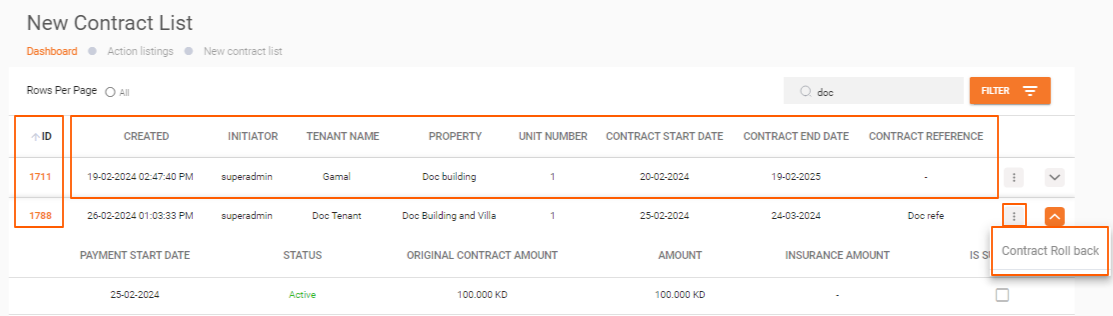
New Contract List
This section displays all contracts, providing basic information such as:
- ID
- Creation date
- Initiator
- Tenant name
- Property
- Unit number
- Contract start and end dates
- Contract reference
Merchants can access further details by clicking the dropdown arrow at the end of each contract row.
Contract Rollback
To roll back a new contract, click on the three dots (...) at the end of the contract row and select Rollback.
Renew Contract List
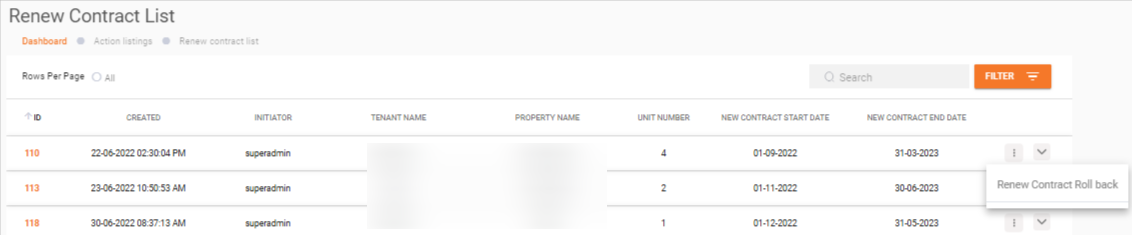
This list displays the same details and functionality as the New Contract List, specifically for contracts that have been renewed.
Renew Contract Rollback
To roll back a renewal contract operation:
- Navigate to the Renew Contract List.
- Locate the desired contract.
- Click the three dots (...) at the end of the row.
- Select Rollback from the dropdown menu.
Terminate Contract List
This list presents basic information for terminated contracts, including:
- ID
- Creation date
- Initiator
- Tenant name
- Property
- Unit number
- Contract start and end dates
- Termination date
Merchants can access additional details for each contract by clicking the dropdown arrow.
Terminate Contract Rollback
To undo a termination:
- Go to the Terminate Contract List.
- Find the specific contract.
- Click the three dots (...) at the end of the row.
- Select Rollback from the dropdown menu.

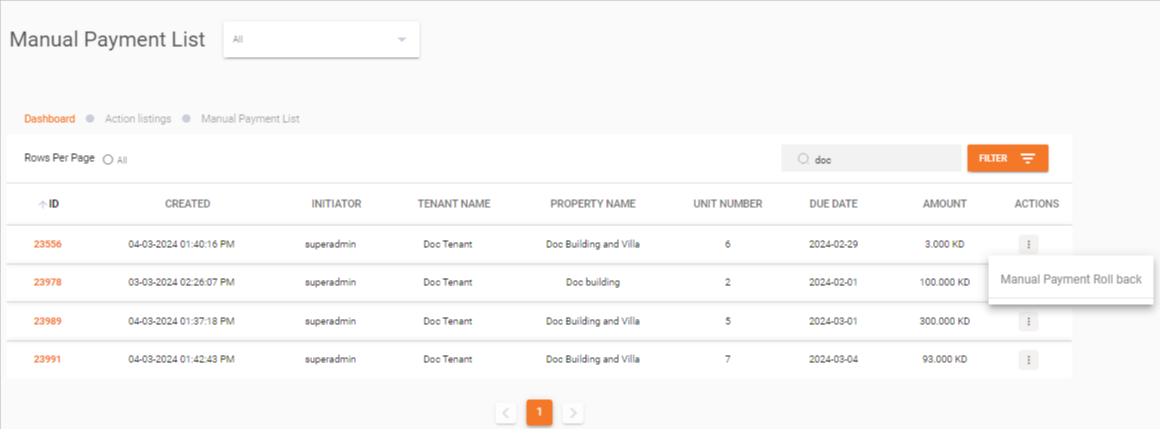
Manual Payment List
All manual payments are listed with the following details:
- ID
- Creation date
- Initiator
- Property name
- Unit number
- Due date
- Amount
Each row represents one manual payment.
Manual Payment Rollback
To roll back a manual payment:
- Navigate to the Manual Payment List.
- Locate the specific payment.
- Click the Action Button at the end of the row.
- Select Rollback from the dropdown menu.
Advance Payments List
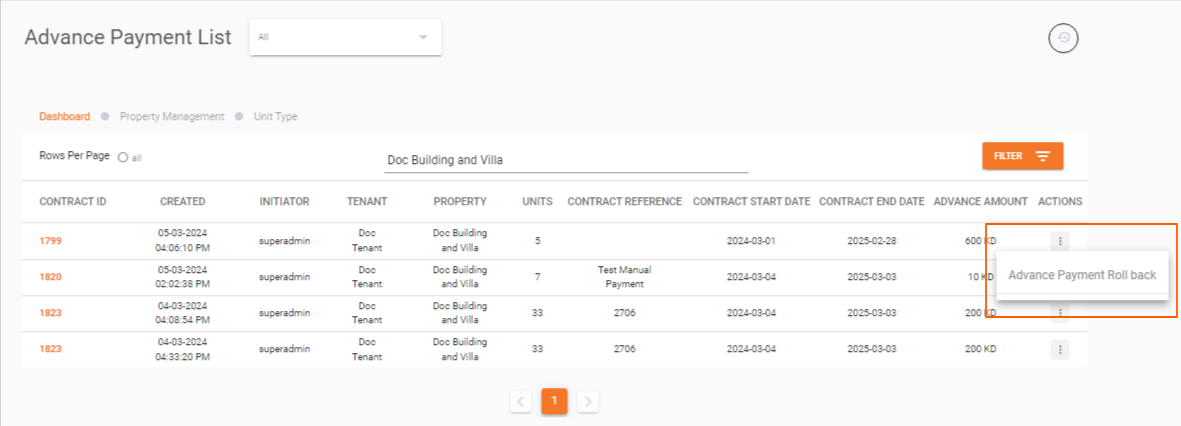
All advance payment requests are listed with key details:
- Contract ID
- Creation date
- Initiator
- Tenant name
- Property
- Unit number
- Contract dates
- Contract reference
- Advance amount
Clicking on a row opens a popup with two tabs:
- Contract Tab -- Displays detailed information about the selected contract.
- Invoices Tab -- Shows paid advance payments linked to the request.
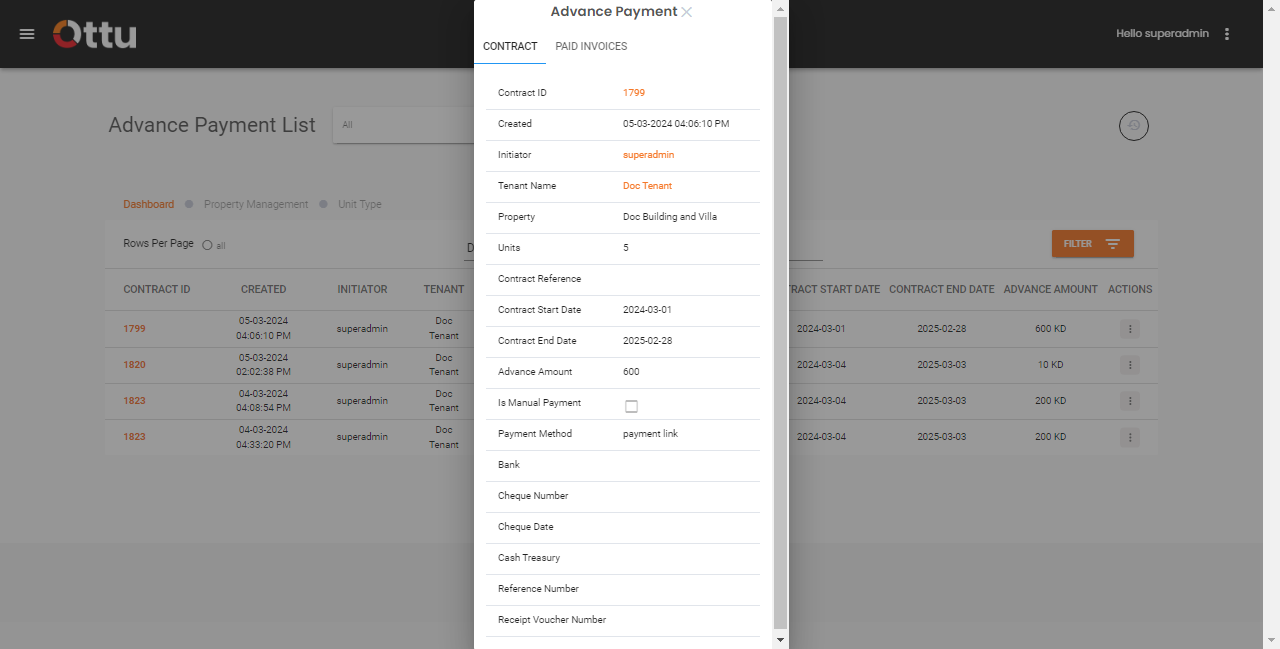
One advance payment request can include more than one invoice.
Advance Payment Rollback
To roll back an advance payment:
- Click the three-dot action menu at the end of the corresponding row.
- Select Rollback from the dropdown options.
Modified Contract List
All modified contracts are displayed in the Modified Contract List. This section provides an organized view of contracts that have undergone changes, allowing merchants to track and review modifications.

What's Next?
- Contract Management -- Overview of all contract actions
- Manual Payment -- Record offline payments
- Invoices Management -- Track and manage all invoices