Generate Invoice
In the Real Estate Plugin, invoices are automatically created and prepared for all rental payments associated with each contract. These payments occur based on the payment frequency defined within the contract form. Through the Generate Invoice section, merchants can explore all prepared invoices and filter them by property, profile, or period.
Merchants can only choose the period for previewing invoices within the range of the plugin activation date to the current month.
Generate Invoices Dashboard
The Generate Invoices Dashboard helps merchants manage rental invoices with tools for viewing, printing, and sharing payment links.
Key features:
- Automatic Invoices -- Invoices are generated based on the payment frequency set in each contract.
- Filter and Display -- View invoices by selecting Property, Profile, or Time Period (from the plugin activation date to the current month).
- Quick Preview -- Click the SHOW button to display all relevant invoices.
- Print Invoices -- Print invoices as professional PDF files using the Print button.
- Send Payment Links -- Share payment links directly with tenants using the Send Payment Link button.
- Apply Discounts -- Discounts are automatically calculated based on unit rates and free periods between the contract start and payment start dates.
- Invoice Details -- Each invoice includes property info, unit details, contract data, tenant information, and financial summaries.
Display Invoices
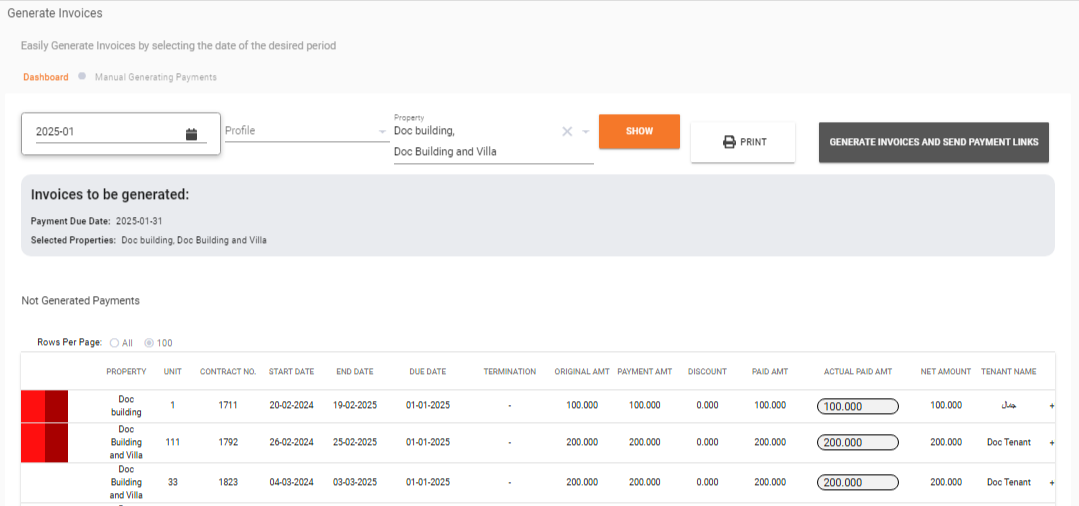
To display invoices, filter by property name, profile, or date. For example, specify the period as January 2025 and the property as Doc Building.
Click the SHOW button to display all relevant invoices from the activation date of the Real Estate Plugin up to the selected month.
Add Discount
Each invoice displays information including property, unit information, contract number, contract start and end dates, due date, termination details, and tenant information, along with amount information.

Merchants can update the collected amount through the Actual PAID Amt field.
Print Invoices
After displaying the relevant invoices, click the Print button. The system automatically formats and generates a printable PDF version of the selected invoices.
Generate Invoices and Send Payment Links
After clicking the SHOW button to display invoices, the Generate Invoices and Send Links button becomes active. Clicking this button will:
- Create the invoices
- Send the payment link to the tenant via email or SMS
What's Next?
- Invoices Management -- Track and manage all generated invoices
- Manual Payment -- Record offline payments for invoices
- Add Contract -- Set up contracts that drive invoice generation