Invoices Management
The Invoices section provides merchants with a centralized view of all generated invoices, including payment status, detailed records, and reporting options.
Invoices Management Dashboard
The Invoice Management Dashboard offers a clear view of all generated invoices, making it easy to track payments, manage records, and generate reports.
Key features:
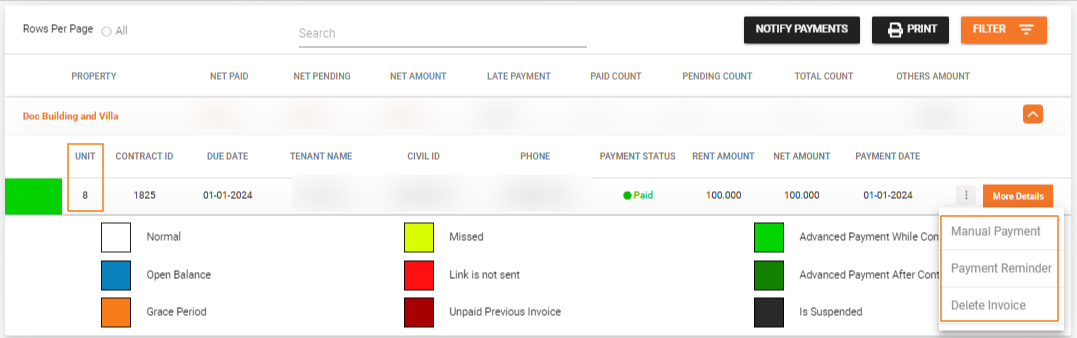
- Organized Invoice Table -- View invoices by property, with details like payment status, tenant info, and amounts.
- Single Notification -- Notify specific tenants about pending payments via the Payment Reminder option.
- Batch Notification -- Send bulk payment reminders using the Notify Payments button.
- Manual Payment -- Record payments manually through the Manual Payment option.
- Delete Invoice -- Remove incorrect invoices via the Delete Invoice option.
- Generate Reports -- Export detailed invoice reports in PDF format using the Generate Report button.
note
All invoices generated in the Generate Invoices section are listed in the Invoices Table, organized by property.
Single Notification
- Purpose: Notify a specific tenant about their pending payment.
- How: Click on the Action Menu (three dots) next to an invoice and select Payment Reminder.
Batch Notification
- Purpose: Send payment notifications to multiple tenants simultaneously.
- How: Use the Notify Payments button to send bulk notifications to all selected invoices.
Manual Payment
- Purpose: Record or process a payment manually for a specific invoice.
- How: Use the Manual Payment option from the Action Menu (three dots). For more information, refer to the Manual Payment section.
Delete Invoice
- Purpose: Remove unnecessary or incorrect invoices.
- How: Click on the Action Menu (three dots) and select Delete Invoice.
Generate Report
- Purpose: Create a printable PDF report of all or selected invoices.
- How: Click on the Generate Report button to export the invoices as a PDF document.
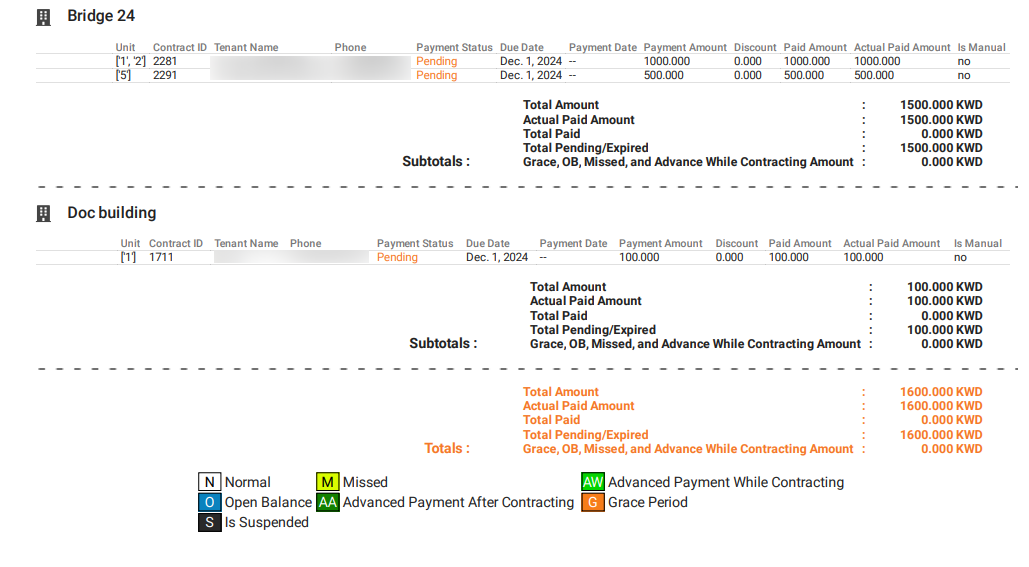
The report includes the following details for each invoice:
| Column | Description |
|---|---|
| Unit | The property unit |
| Contract ID | Contract identifier |
| Tenant Name | Name of the tenant |
| Phone | Tenant contact number |
| Payment Status | Current payment status |
| Due Date | Invoice due date |
| Payment Date | Date payment was made |
| Payment Amount | Original invoice amount |
| Discount | Any discount applied |
| Paid Amount | Amount actually paid |
| Actual Paid Amount | Confirmed received amount |
| Is Manual | Whether the payment was recorded manually |
Steps to Generate PDF Reports
- Generate Necessary Invoices -- Ensure all required invoices are generated in the Generate Invoice section.
- Access the Invoice Table -- Navigate to the Invoice section and scroll down to the Invoice Table.
- Filter Parameters (Optional) -- Click the Filter button to set criteria such as due month, due date range, property, payment date range, invoice status, report profile, tenant, and payment type. Click Search to locate the desired invoices.
- Initiate PDF Generation -- Click the Print button in the Invoice Table.
- Automatic PDF Creation -- The PDF generates automatically after clicking Print.
- Download the Report -- Once the PDF is ready, download it to your device.
What's Next?
- Generate Invoice -- Create new invoices and send payment links
- Manual Payment -- Record offline payments
- Transactions -- Monitor all payment transactions