Property Management
This section covers adding, editing, and managing property details within the Ottu Real Estate Plugin. It ensures accurate property records and optimized workflows for seamless property administration.
Property Management Dashboard
The Property Management Dashboard provides a clear overview of all properties and easy access to essential property details and actions.
Key features:
- Property Overview -- View a list of all properties with addresses, contracts, and unit statuses.
- Quick Access -- Easily view property details like classification, reporting profile, and invoice profile.
- Unit Status -- Track available, rented, and under-maintenance units at a glance.
- Filter Options -- Quickly find properties using filters for location, availability, and classification.
- Add & Edit Properties -- Directly add, edit, or update property and unit details.
- Reports -- Generate PDF reports on unit vacancy and occupancy status.
Add New Property
To add a new property, navigate to the Property Management section and click the +ADD PROPERTY button.
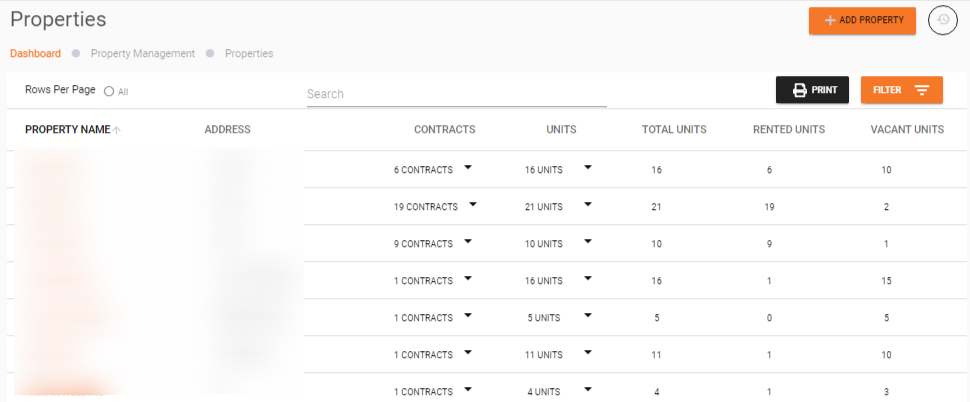
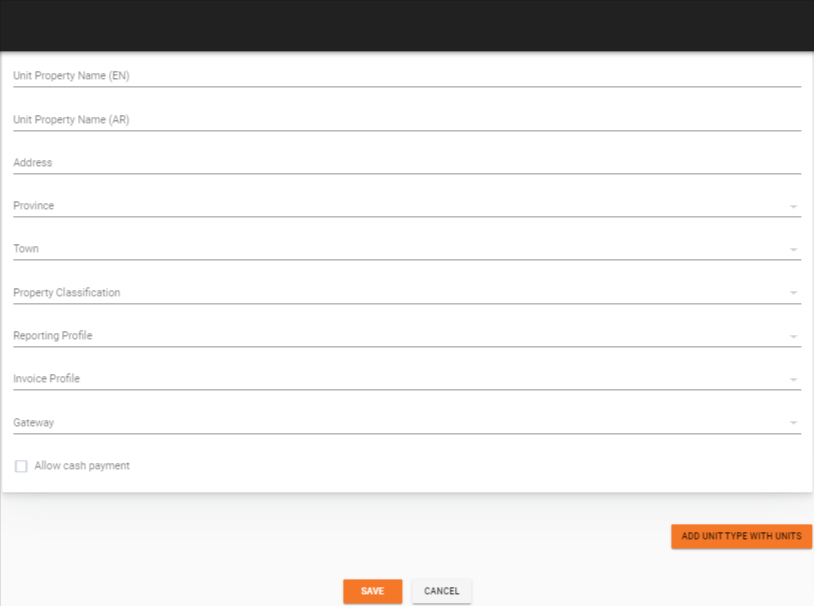
You will be redirected to the form for adding a new property.
New Property Form
Fill out the following fields:
| Field | Description |
|---|---|
| Property Name (EN) | The name of the property in English |
| Property Name (AR) | The name of the property in Arabic |
| Address | The physical address of the property |
| Province | The province where the property is located |
| Town | The town or city where the property is situated |
| Property Classification | The classification or category of the property |
| Reporting Profile | Groups multiple properties under one profile for consolidated reporting |
| Invoice Profile | Manages the logo, notification, and signature for receipts and checkout pages associated with this profile |
| Gateway | The payment gateway associated with the property |
| Allow Cash Payment | Option to enable or disable cash payments (check or uncheck) |
Add Unit Types and Units
To add multiple unit types (e.g., villas and apartments) along with their respective units:

Unit Type
- Click ADD UNIT TYPE WITH UNIT to add a unit type and new units.
- Unit Type: Choose from existing unit types in the dropdown list, or add a new one by clicking ADD UNIT TYPE and filling in the required details.
Edit Property
Merchants can update property details through a straightforward process:
- Access Property List -- Go to the Property Management section.
- Select Property -- Click on the property name you want to edit.
- Edit Form Opens -- A pre-filled form with the property's details appears.
- Modify Details -- Update property information as needed.
- Manage Units -- Edit existing units or add new units if required.
- Save Changes -- Finalize updates and save.
Generate Property Report
Merchants can generate a PDF report detailing property vacancy and occupancy.
How to Generate the PDF Report
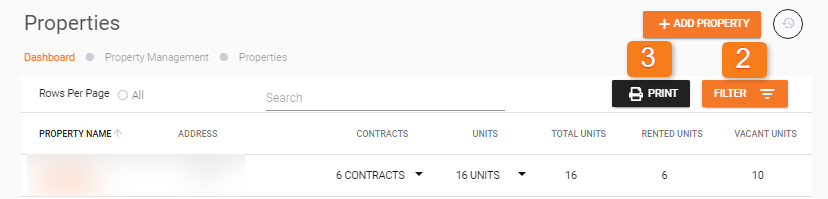
Click the Print Button
- Access the Property Management Table -- Navigate to the Property Management section in your dashboard.
- Define Filter Parameters (Optional) -- Click the Filter button and set your desired criteria.
- Click the Print Button -- From the Property Management table, click the Print button.
What's Next?
- Getting Started -- Walk through a complete property setup journey
- Tenant & Contract Management -- Manage tenants and create contracts for your properties
- Generate Invoice -- Create and send invoices for your properties