Notification Delivery Process
Ottu supports two methods for delivering notifications to customers: automatic and manual. The delivery method depends on the notification channel being used.
Automatic and Manual Channels
Email, SMS, and Integrated WhatsApp
These channels support both automatic and manual notification delivery:
-
Automatic Notification -- A notification is automatically sent to the customer when a specific trigger state occurs (e.g., payment created, payment paid, refund processed). No merchant action is required.
-
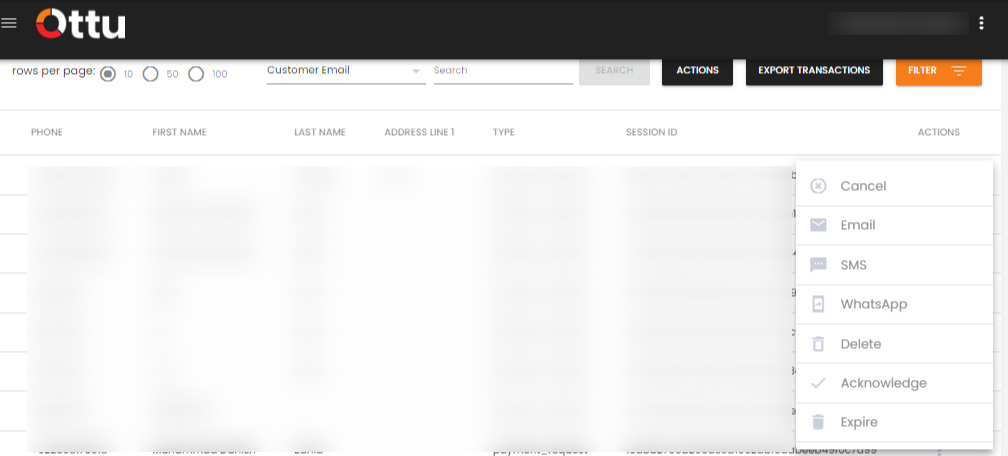
Manual Notification -- Merchants can also manually trigger a notification at any time by clicking the three-dot menu under the Action column in the Transaction Table. Select the icon for the desired notification channel (Email, SMS, or WhatsApp) to send the notification.
Manual notifications are useful when you need to resend a notification that the customer may have missed, or when you want to send an update at a specific time.
Manual WhatsApp Channel
The Manual WhatsApp channel does not send notifications automatically. Merchants must manually trigger every WhatsApp notification through the Transaction Table.
Delivery Summary
| Channel | Automatic | Manual |
|---|---|---|
| Yes | Yes | |
| SMS | Yes | Yes |
| Integrated WhatsApp | Yes | Yes |
| Manual WhatsApp | -- | Yes |
How to Manually Trigger a Notification
- Navigate to the Transaction Table in the Ottu dashboard.
- Locate the transaction you want to notify the customer about.
- Click the three-dot menu (action icon) at the end of the transaction row.
- Select the notification channel icon (Email, SMS, or WhatsApp).
- The notification is sent to the customer using the configured template for that channel and payment state.
What's Next?
- Email Notifications -- Learn about email notification setup and states
- SMS Notifications -- Learn about SMS notification setup and states
- WhatsApp Notifications -- Explore WhatsApp notification options
- Notification Templates -- Understand template availability across channels
- Transaction Insights -- Learn about the Transaction Table and payment monitoring