Apple Pay
Apple Pay is a mobile payment and digital wallet service that lets customers pay using their iPhone, iPad, Mac, MacBook, or Apple Watch. It provides a fast, secure checkout experience — customers authenticate with Face ID, Touch ID, or a device passcode instead of entering card details manually.
Ottu supports Apple Pay in Kuwait, Saudi Arabia (KSA), and Bahrain.
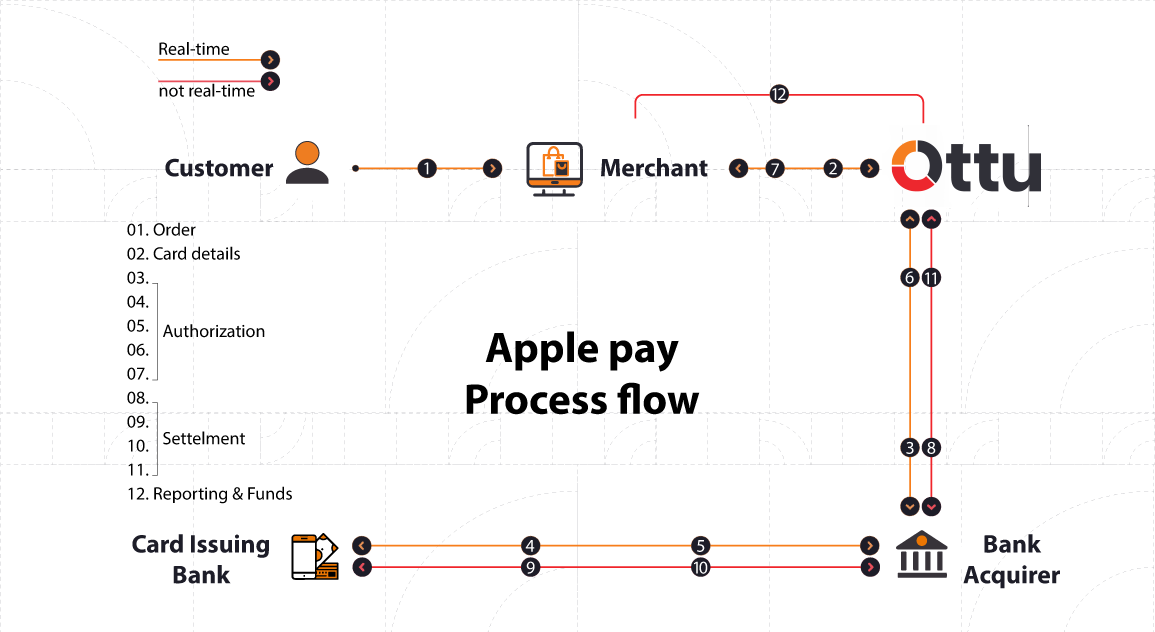
Apple Pay Configuration Guide
Setting up Apple Pay requires coordination between three portals: your Apple Developer account, the Ottu Dashboard, and your payment gateway portal. You will need to:
- Create a Merchant ID
- Add and verify a domain
- Create Apple Pay certificates
- Set up the Payment Processing Certificate for your gateway
You must have an Apple Developer account to accept Apple Pay payments. If you do not have one, sign up at developer.apple.com.
Creating Merchant ID
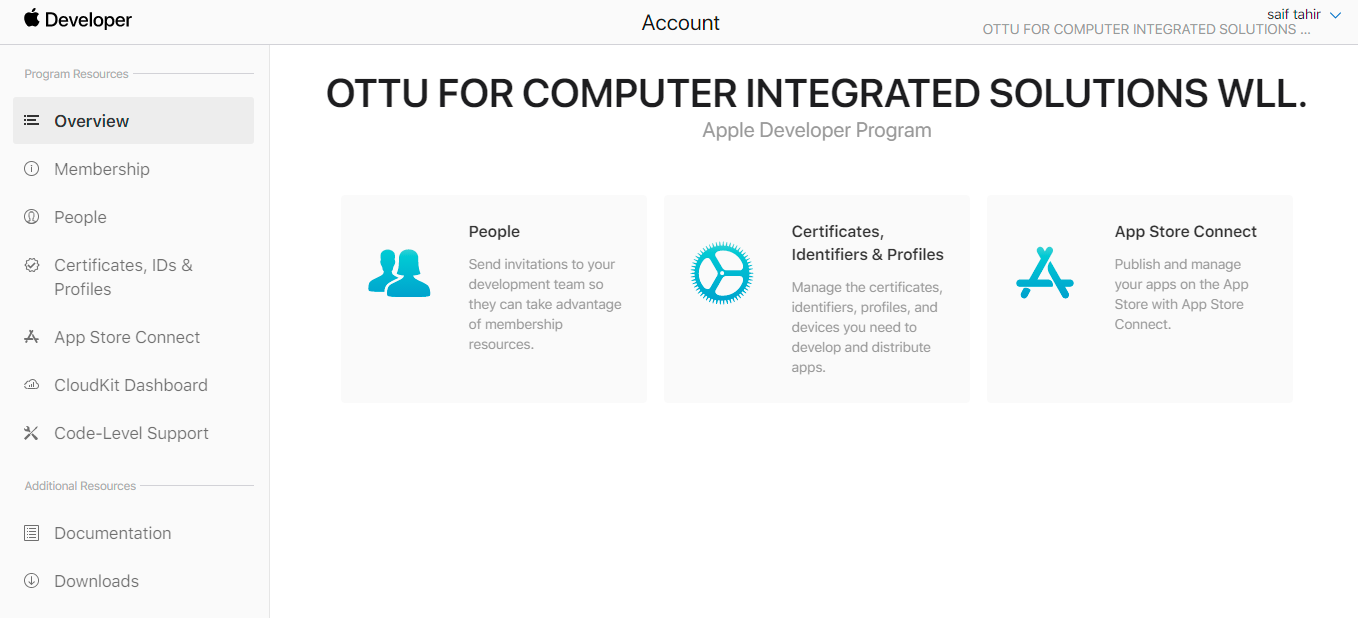
Log in to your Apple Developer account
Adding and Verifying a Domain
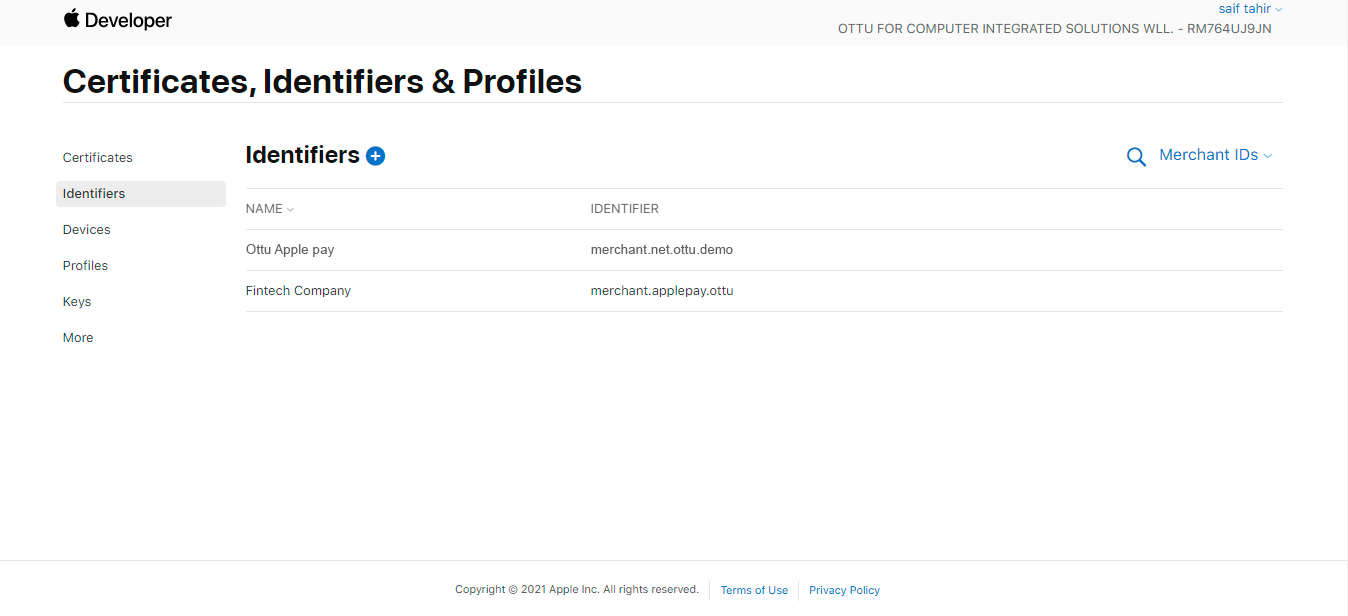
Select your Merchant ID
If you use your own custom domain alongside Ottu, you must also verify that domain. Follow Apple's domain verification guide for instructions.
Creating Apple Pay Certificates
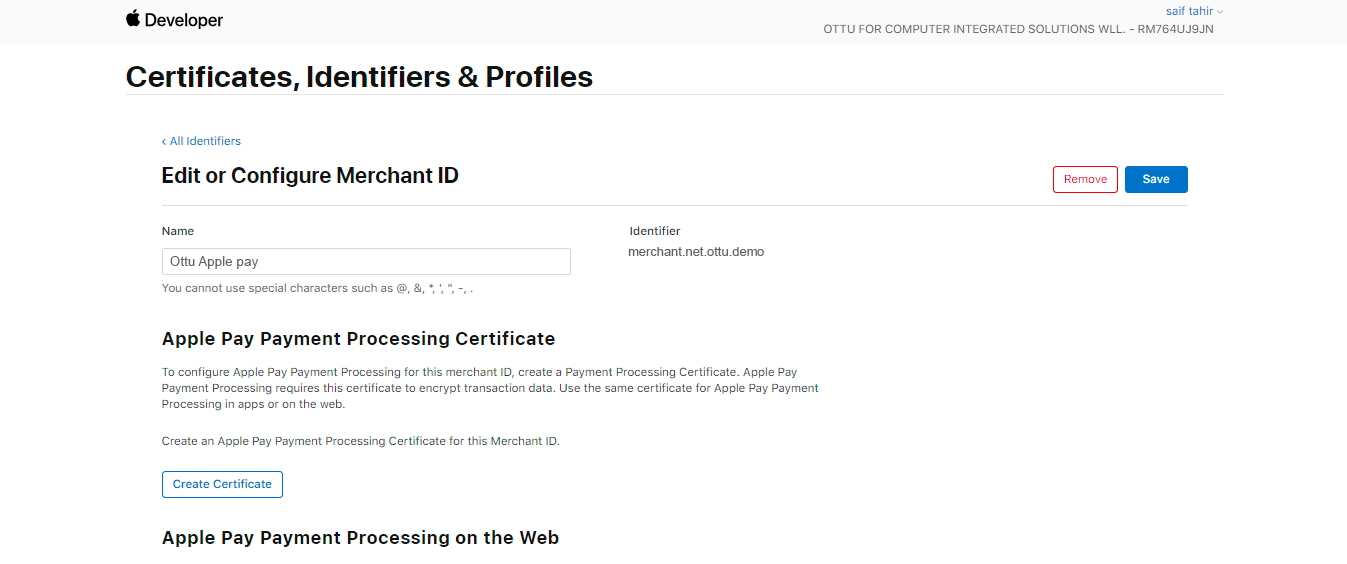
Go to Certificates, IDs & Profiles
Download the CSR from Ottu
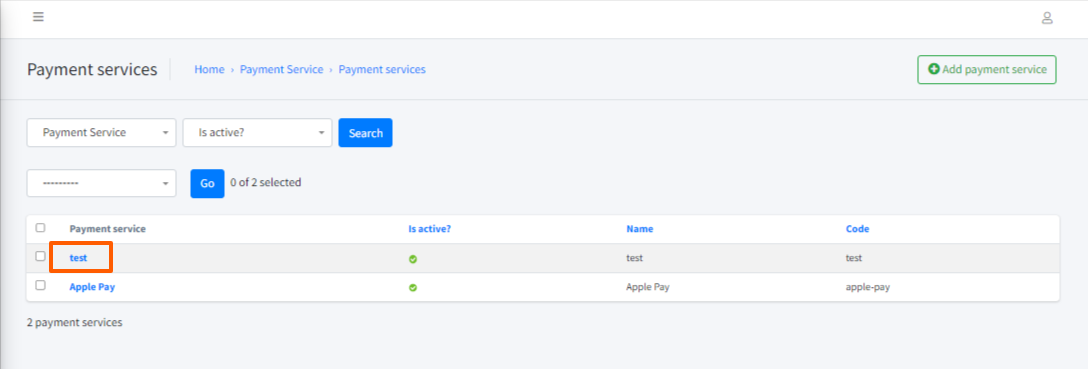
Select the payment service
If you have not added the payment service yet, follow the instructions in Adding and Verifying a Domain above.
Upload the CSR to Apple
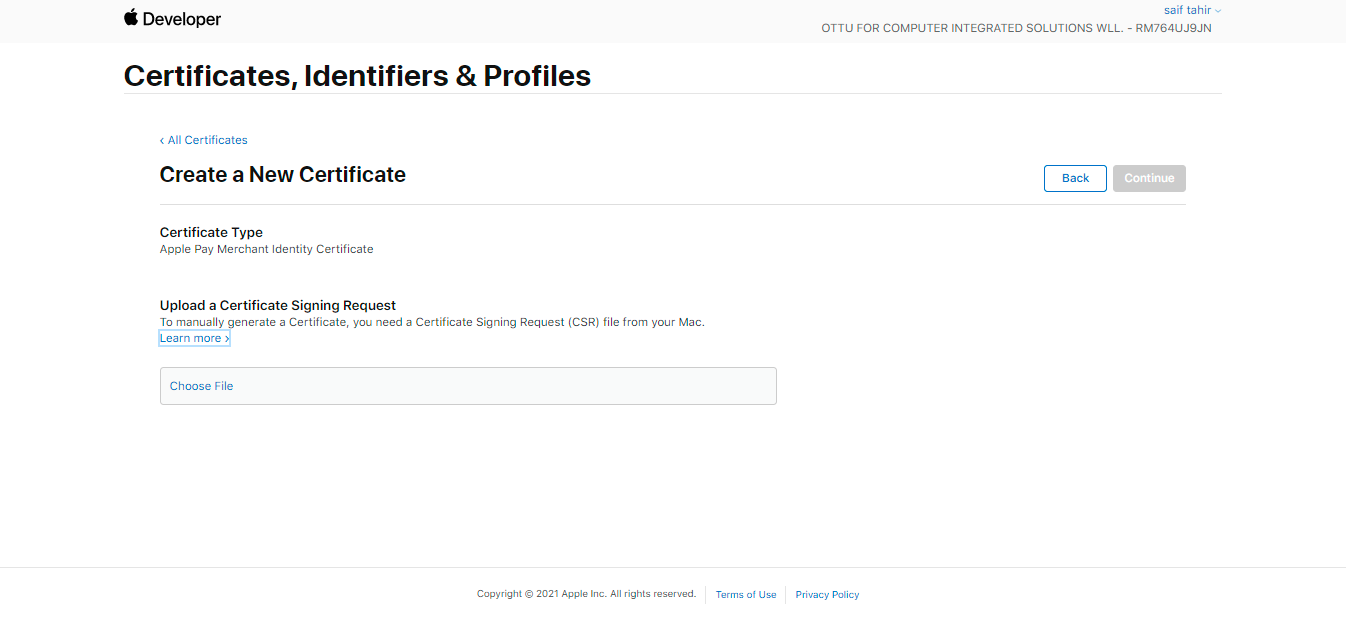
Upload the CSR file
Upload the Certificate to Ottu
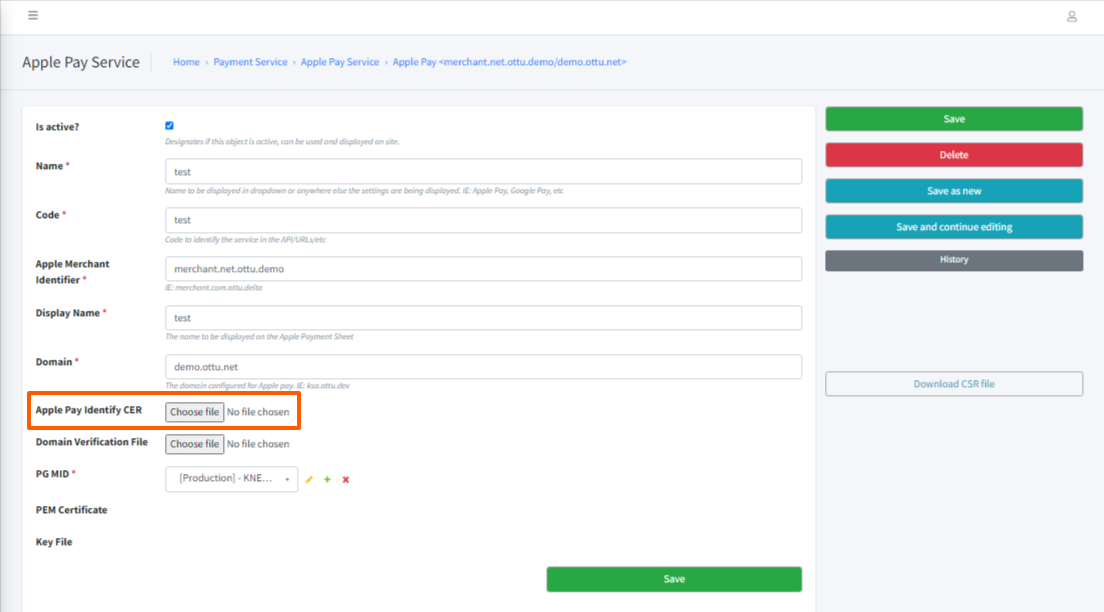
Upload the CER file to Ottu
.CER file to the Apple Pay Identifier CER field and click Save.Creating Apple Payment Processing Certificate
The Payment Processing Certificate is required by your payment gateway to decrypt Apple Pay transaction data. The setup process differs depending on your gateway.
Ottu supports Apple Pay with MPGS, Cybersource, and KNET gateways. Follow the guide for your gateway:
- Setup MPGS — Integration process for Apple Pay with Mastercard Payment Gateway Services
- Setup Cybersource — Integration process for Apple Pay with Cybersource
For KNET gateway setup, contact the Ottu support team for assistance.
What's Next?
- Setup MPGS — Create the Payment Processing Certificate for MPGS
- Setup Cybersource — Create the Payment Processing Certificate for Cybersource
- Samsung Wallet — Set up Samsung Wallet for customers on Samsung devices
- Payment Gateways — Browse and configure your payment gateways