Apple Pay — Cybersource Setup
This guide walks you through integrating Apple Pay with Cybersource. By the end, your Cybersource account will be configured to process Apple Pay transactions through Ottu.
Prerequisites:
- A valid Cybersource account
- An Apple Developer account with a Merchant ID already created
The process involves four steps:
- Generate a Cybersource RESTful Key
- Provide the RESTful Keys to Ottu
- Generate a Certificate Signing Request from Cybersource
- Download the Apple Pay Payment Processing Certificate
Generating a Cybersource RESTful Key
Step 1 of 3
Step 1 of 3
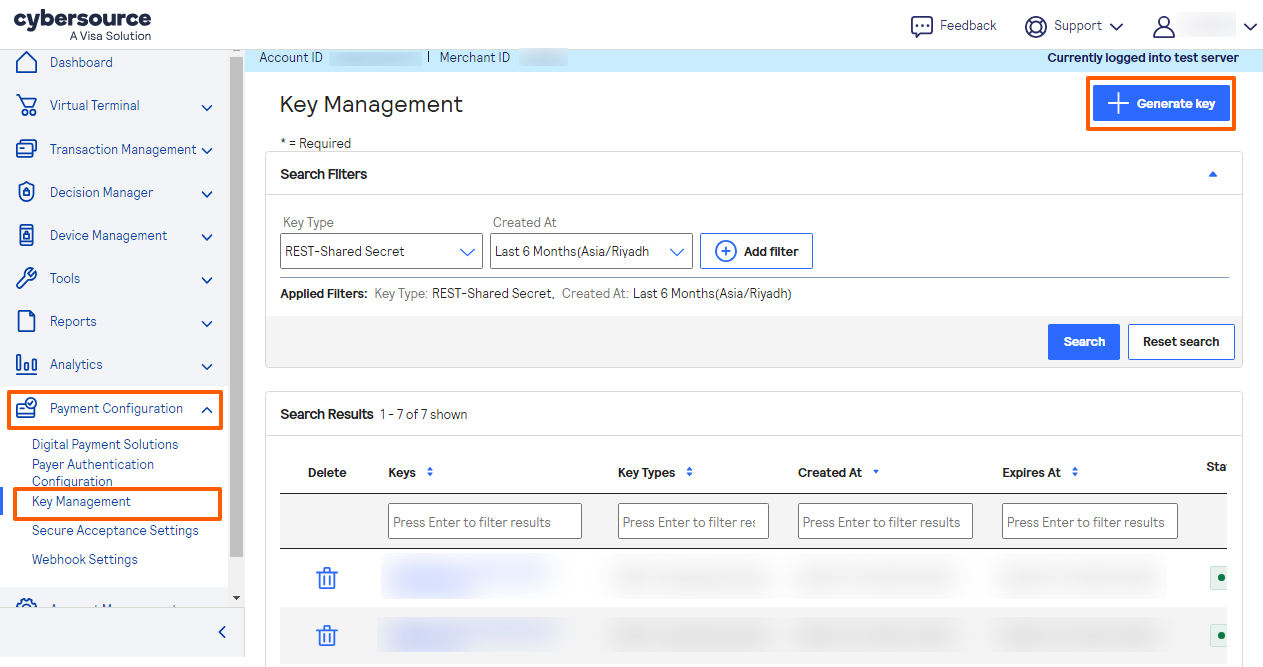
Go to Key Management
- Log in to your Cybersource account.
- Navigate to Payment Configuration.
- Click Key Management.
- Click the + Generate Key button.
Providing the RESTful Keys to Ottu
- Log in to the Ottu Dashboard.
- Navigate to the Administration Panel.
- Locate the Gateway tab.
- Go to Settings.
- Select the Cybersource PG Setting associated with your Apple Pay service.
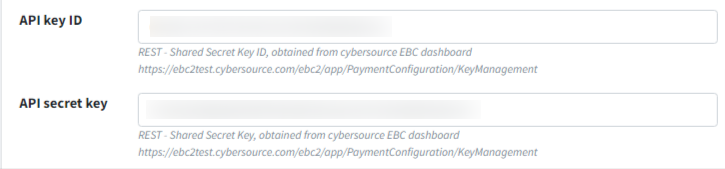
- Enter the two generated keys (Key and Shared Secret) in the appropriate fields and save.
Generating a Certificate Signing Request
Step 1 of 3
Step 1 of 3
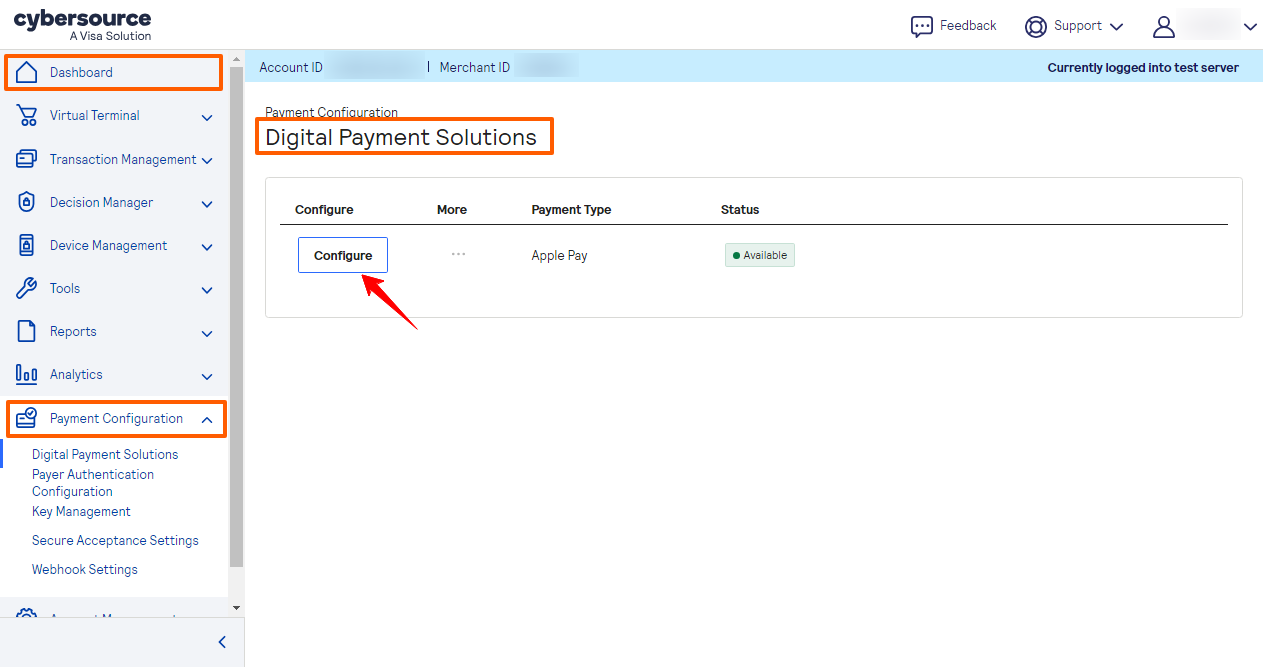
Go to Digital Payment Solutions
- Log in to the Cybersource portal dashboard.
- Under Payment Configuration, access Digital Payment Solutions.
- Click the Configure button.
Download the Apple Pay Payment Processing Certificate
Upload the CSR to Apple
Step 1 of 4
Step 1 of 4
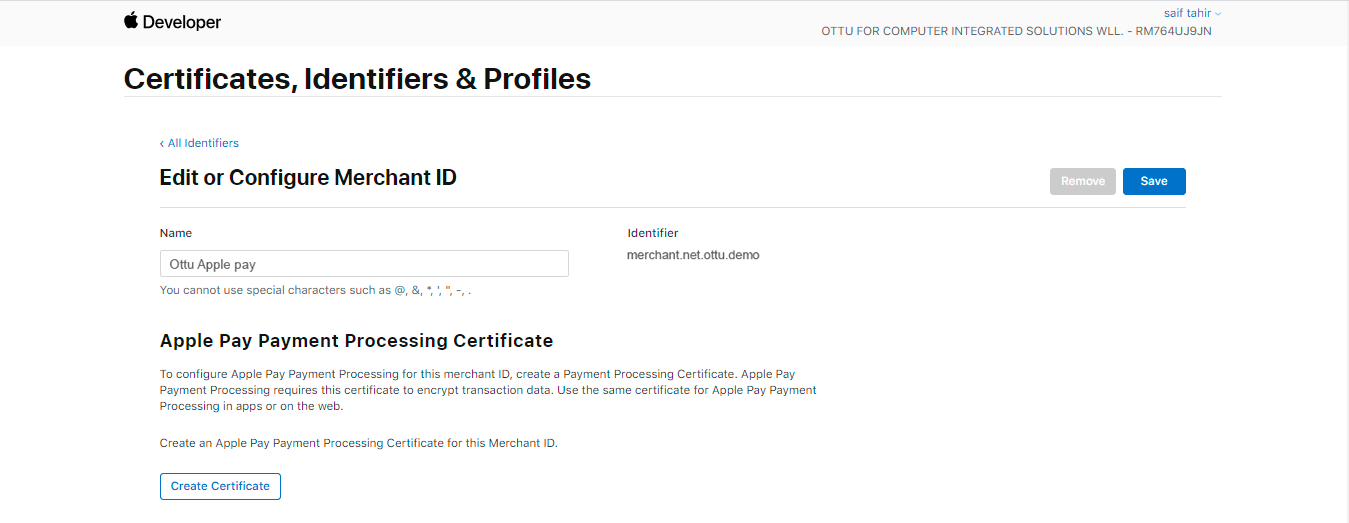
Create Certificate in Apple
- Log in to your Apple Developer account.
- Go to the Merchant ID you created and click Create Certificate under Apple Pay Payment Processing Certificate.
What's Next?
- Apple Pay Configuration — Return to the main Apple Pay setup guide
- Setup MPGS — Set up Apple Pay with MPGS instead
- Payment Gateways — Browse and configure your payment gateways
- Payment Services — Overview of all available payment services