Apple Pay — MPGS Setup
This guide walks you through integrating Apple Pay with Mastercard Payment Gateway Services (MPGS). By the end, your MPGS account will be configured to process Apple Pay transactions through Ottu.
Prerequisites:
- A valid MPGS account
- An Apple Developer account with a Merchant ID already created
The process involves three steps:
- Obtain a CSR from MPGS
- Create the Payment Processing Certificate in Apple
- Upload the certificate back to MPGS
Obtaining Apple Pay CSR
Step 1 of 2
Step 1 of 2
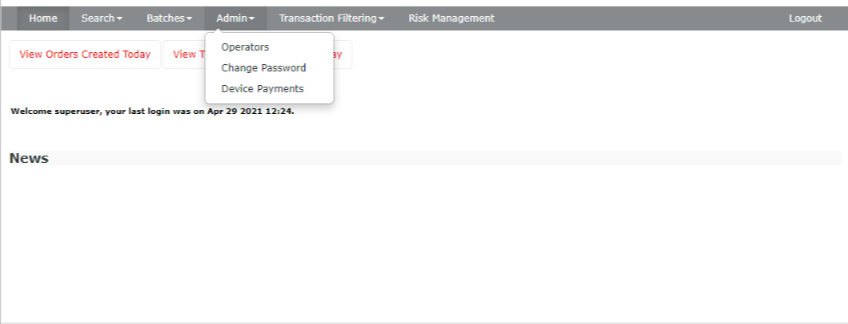
Go to Device Payments
Log in to the Mastercard Payment Gateway Services (MPGS) portal. Go to Device Payments.
Obtaining Apple Pay Payment Processing Certificate
Step 1 of 4
Step 1 of 4
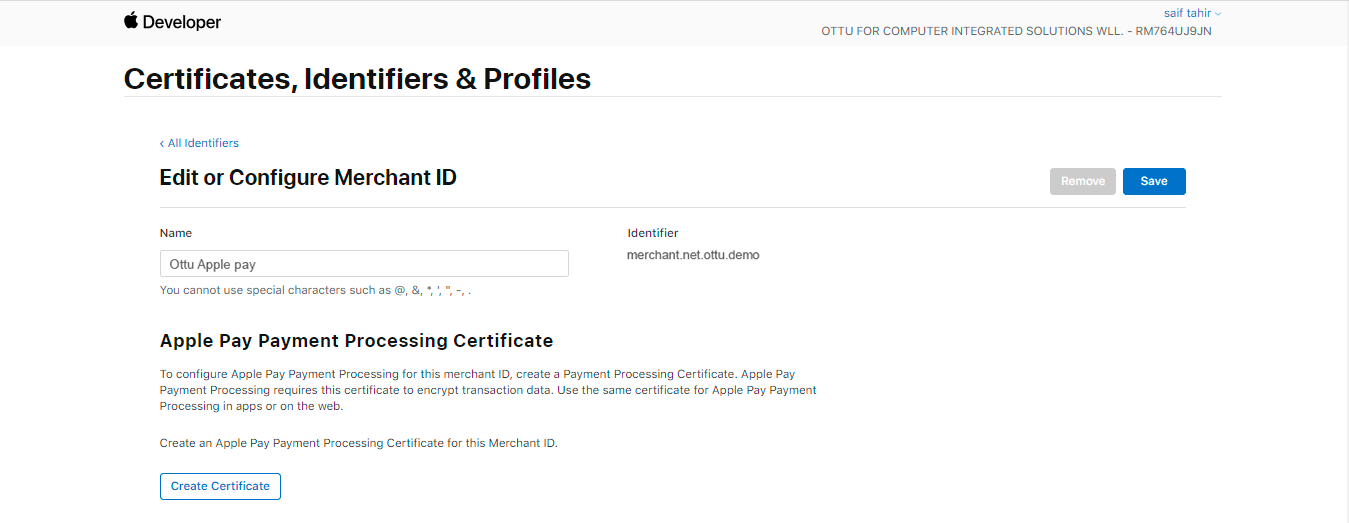
Create Certificate in Apple
Log in to your Apple Developer account and go to the Merchant ID you created. Under Apple Pay Payment Processing Certificate, click Create Certificate.
Providing Apple Pay Payment Processing Certificate
Step 1 of 2
Step 1 of 2
Go to Device Payments
Log in to the MPGS portal and go to Device Payments.
What's Next?
- Apple Pay Configuration — Return to the main Apple Pay setup guide
- Setup Cybersource — Set up Apple Pay with Cybersource instead
- Payment Gateways — Browse and configure your payment gateways
- Payment Services — Overview of all available payment services