Samsung Wallet
Samsung Wallet allows your customers to complete online payments quickly and securely using their Samsung Wallet. Once enabled, a Samsung Wallet button appears on your web checkout page, giving customers a fast, device-authenticated payment option.
To enable Samsung Wallet, you will:
- Create a Samsung Developer account
- Set up a Samsung Wallet service in the Developer Portal
- Request approval from Samsung
- Share your Service ID with Ottu for final configuration
Create Your Samsung Developer Account
- Visit the Samsung Wallet Developer Portal: https://pay.samsung.com/developer
- Register for a Samsung developer membership.
- When asked about company registration:
- If you are the first Samsung Wallet member: Select "I am the first Samsung Wallet member of my company."
- If your company already has a Partner ID: Select "My company is already registered" and enter your Partner ID.
- Contact your Samsung Wallet relationship manager to approve your membership.
- After approval, log in again at https://pay.samsung.com/developer.
Create a Samsung Wallet Service
Step 1 of 6
Step 1 of 6
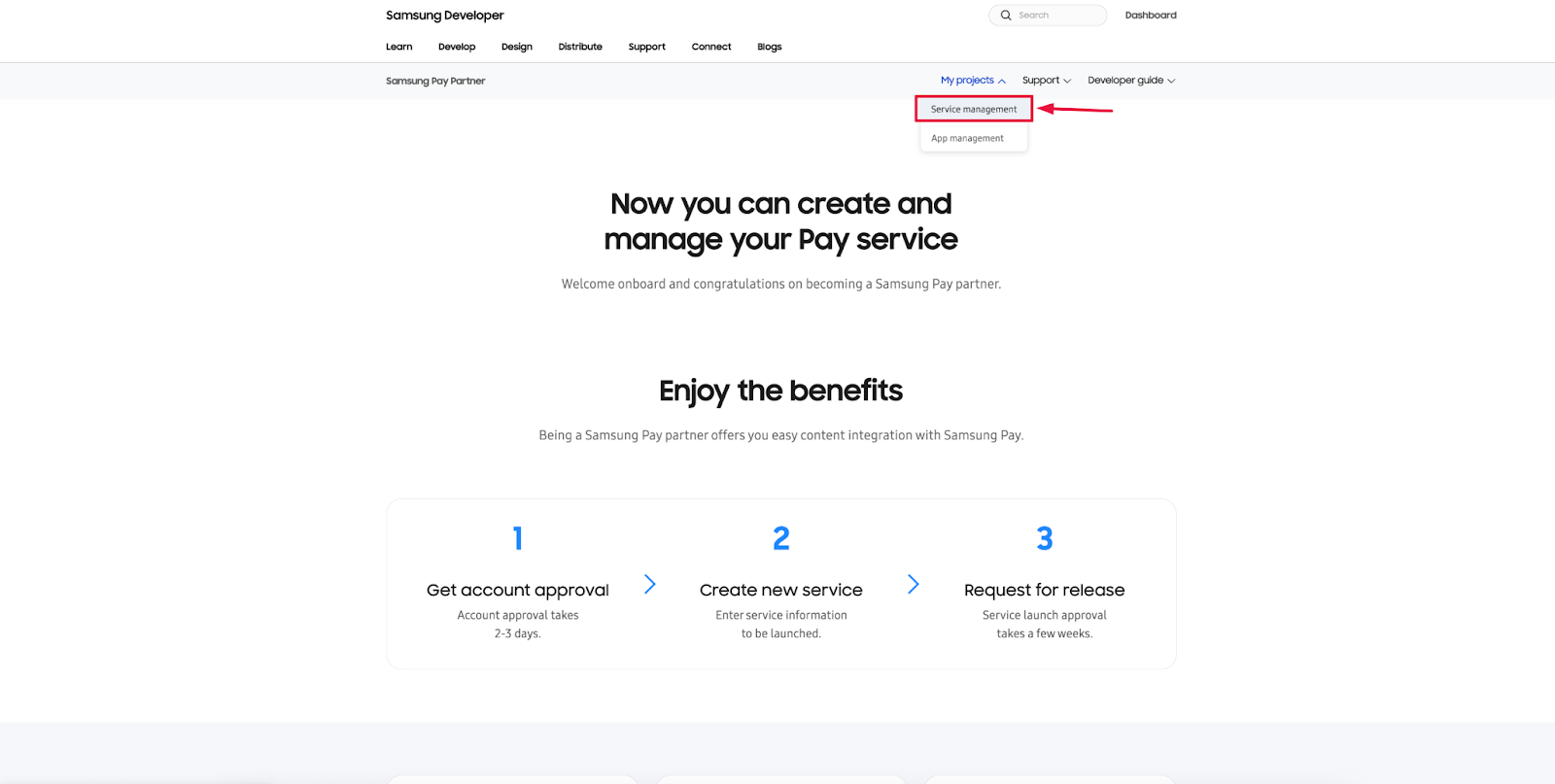
Navigate to Service Management
Navigate to My Projects > Service Management.
Completion
After Ottu finishes linking your Service ID, Samsung Wallet will be active and ready for use on your online checkout page.
tip
Your customers can now enjoy smooth and secure Samsung Wallet payments directly from your checkout page.
What's Next?
- Apple Pay — Set up Apple Pay for customers on iPhone, iPad, and Mac
- Payment Services — Overview of all available payment services
- Payment Gateways — Browse and configure your payment gateways