Payment Request
The Payment Request plugin lets you create individual payment links and share them with customers via email, SMS, or any messaging channel. Customers pay through a secure hosted checkout page — no code required on your side.
Key Characteristics
- Simple creation — Fill out minimal details to generate a payment request directly from the dashboard.
- Multiple gateway options — Choose from any payment gateway configured on your Ottu account.
- Shareable links — Each request generates a unique, secure link you can send through any channel.
- Transaction tracking — Monitor payment status in real time from the Payment Management section.
- Security built in — All transactions are processed through PCI-compliant payment gateways.
Plugin Configuration
Configure the Payment Request plugin from the Administration Panel:
- Access the Administration Panel — From the Ottu Dashboard, click the three-dot menu in the top-right corner and select Administration Panel.
- Open Payment Request Configuration — In the Administration Panel, find the Payment Request section and click Payment Request Configuration.
- Adjust configuration options as needed:
General
Define core settings for the plugin:
- Default Email — Pre-filled sender email address
- Redirect URL — Where the customer lands after completing payment
- Webhook URL — Endpoint for receiving payment notifications (see Webhooks)
- Default Currency — Currency pre-selected for new requests
- Transaction Expiration Time — How long a payment link remains valid
- Default Phone Number Country Code — Pre-selected country code for phone fields
- QR Code Type — Format of the generated QR code
Optional toggles:
- Disable email input field
- Disclose merchant URL
- Allow customers to edit the payment amount
- Add an additional phone number field
- Restrict multiple payments on the same link
- Enable individual proxy fields
Fee
Enable additional fees on payment requests:
- Fee type — Flat amount or percentage
- Fee value — The specific fee amount or rate
Security
- API access — Enable or disable API access to this plugin
- IP whitelisting — Restrict access to specific IP addresses
Disclaimer
Optionally attach a disclaimer to the payment page using a configurable template.
Receipt
Enable receipts with a customizable template that is sent to customers after payment.
Terms and Conditions
Display terms and conditions on the checkout page. Provide the content directly in the configuration.
Plugin Options
Additional options:
- Code Pairing — Link payments to internal reference codes
- Notification — Configure notification behavior
- Multi-Step Checkout — Break the checkout into multiple steps
Fields
Add built-in or custom fields to personalize the payment request form. See the Plugin Fields Configuration section below.
Plugin Fields Configuration
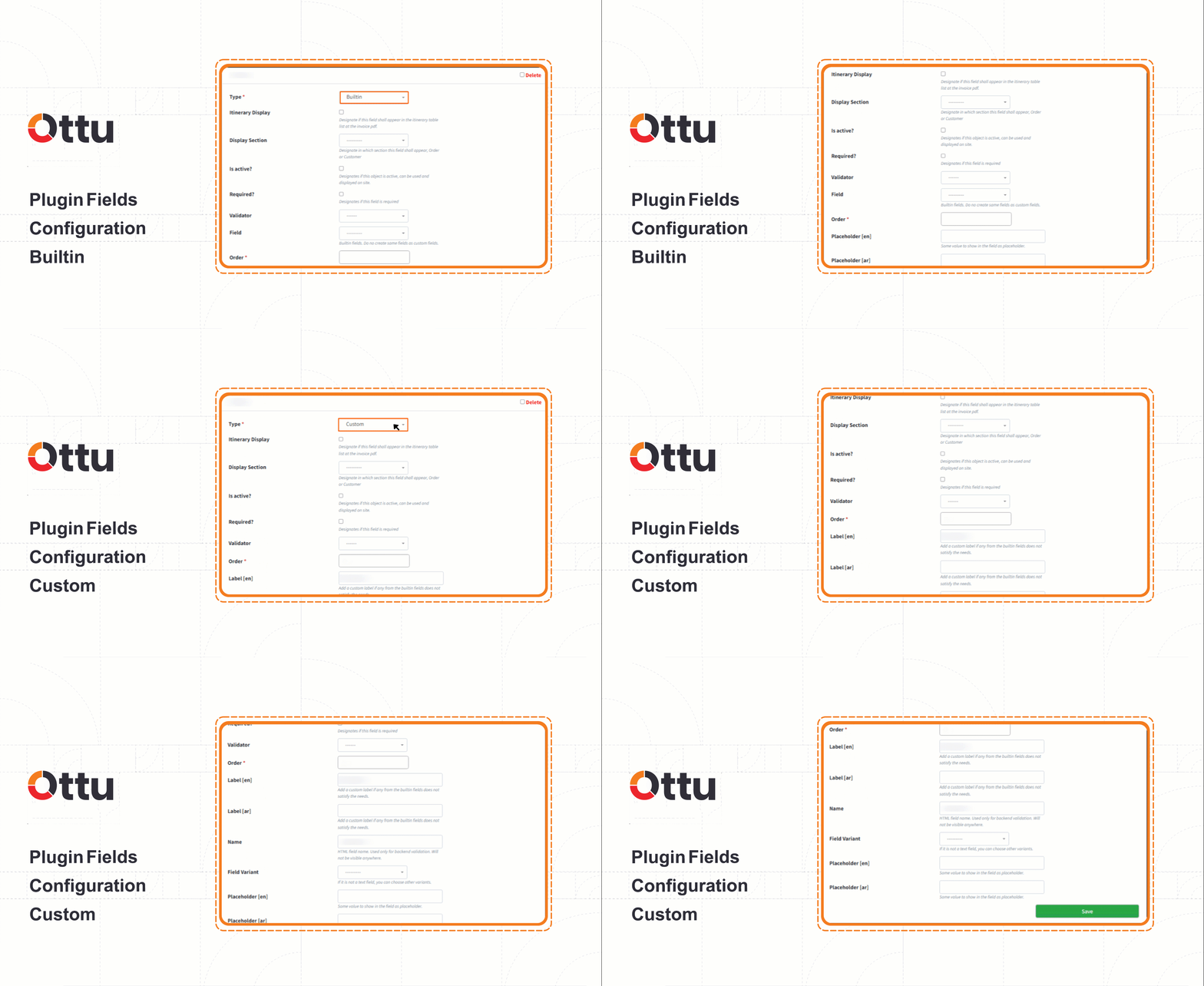
The Payment Request plugin supports adding new custom fields and customizing existing built-in fields on the checkout form.
Adding a Field
- Go to Ottu Dashboard > Administration Panel > Payment Request > Fields.
- Click Add another Field.
- Complete the field settings described below and save.
Field Settings
| Setting | Description |
|---|---|
| Type | Custom (a new field you define) or Builtin (an existing system field) |
| Itinerary Display | When checked, the field appears in the itinerary table within the invoice PDF |
| Display Section | Where the field appears on the checkout page — either Order Description or Form |
| Is Active? | Controls whether the field is visible and usable |
| Required? | Whether the field is mandatory or optional |
| Validator | Constraints or rules applied to the field value (e.g., format, length) |
| Field | Dropdown of predefined system fields — only shown when Type is set to Builtin |
| Order | Controls the display position relative to other fields in the same section |
| Placeholder [en] | Hint text shown in English (e.g., "Enter your order reference") |
| Placeholder [ar] | Hint text shown in Arabic |
Custom Field Settings
When Type is set to Custom, the Field dropdown is replaced with these additional settings:
| Setting | Description |
|---|---|
| Name | Internal HTML field name used for backend validation (not visible to customers) |
| Label [en] | Display label in English |
| Label [ar] | Display label in Arabic |
Use custom fields to capture order-specific information (e.g., delivery address, reference number) directly on the payment page without any development work.
What's Next?
- E-Commerce — Integrate Ottu directly with your online store
- Bulk Payment Request — Send payment requests to multiple customers at once
- Payment Management — Track and manage all your transactions
- Notifications — Configure how customers receive payment notifications