Transaction Report Configuration
Ottu provides automated transaction reporting so you can monitor payment activity without manual effort. Reports can be delivered by email or SFTP on a schedule you define. There are two report types:
- Periodic Transaction Reports — recurring reports generated at a fixed interval (daily, weekly, monthly)
- Flexible Interval Transaction Reports — custom reports with more granular control, including SFTP delivery and breakdown columns
Periodic Transaction Report Configuration
Periodic reports generate automatically on a recurring schedule and can be emailed directly to your team.
Accessing Periodic Reports
- Open the Ottu Dashboard
- Click the three dots in the top-right corner to open the Administration Panel
- Navigate to Report > Periodic Transaction Report Config

Click Add Periodic Transaction Report, then fill in the fields below.
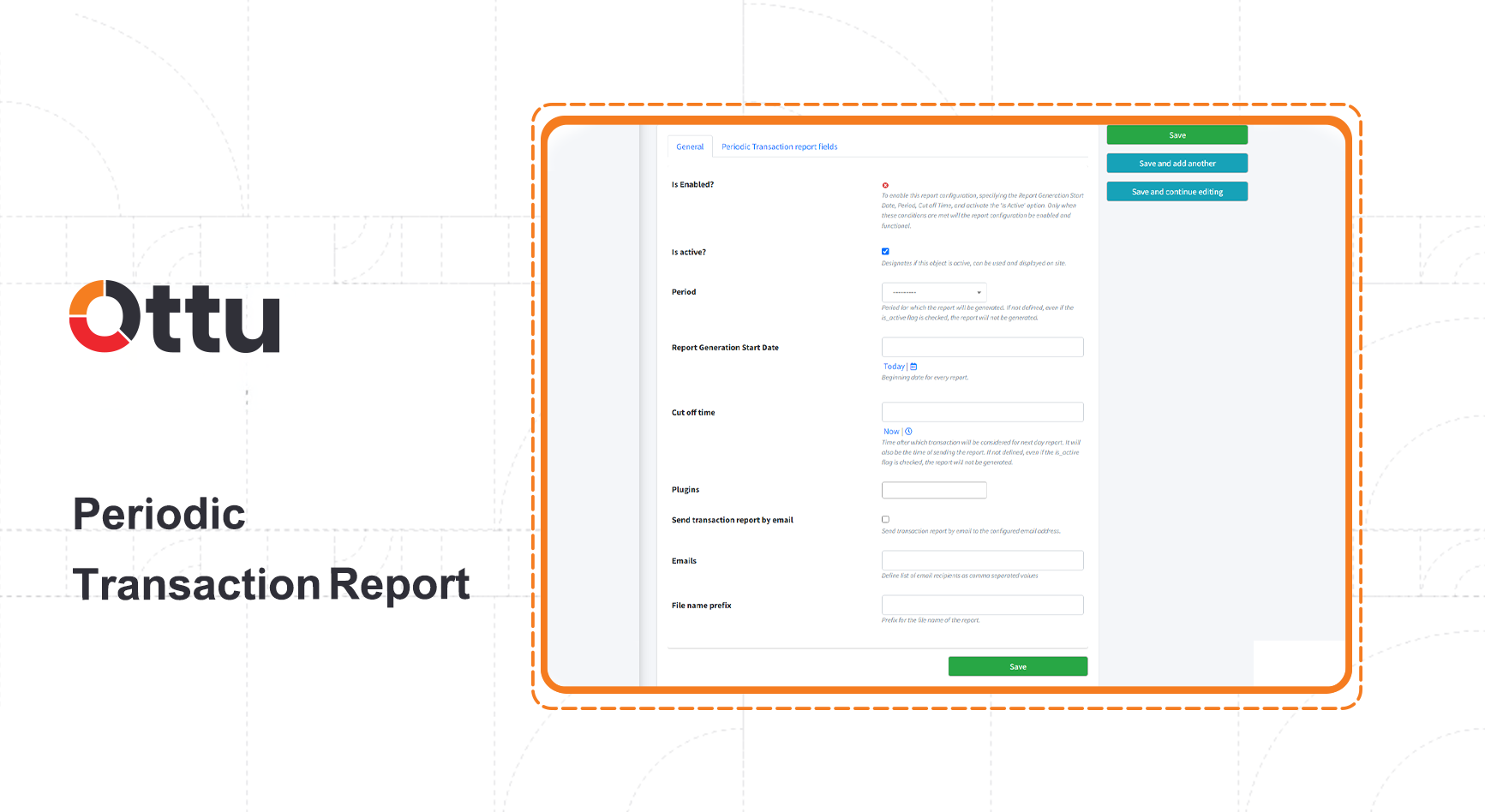
Field Descriptions
| Field | Description |
|---|---|
| Is Enabled? | The report only becomes active once all required fields are completed: Report Generation Start Date, Period, Cut-off Time, and the Is Active flag |
| Is active? | Whether this report configuration is currently active and visible on the dashboard |
| Period | How often the report is generated (e.g., daily, weekly, monthly) |
| Report generation date/time | The date and time when report generation starts |
| Cut-off time | The time at which transactions are evaluated for inclusion in the next report. Also determines when the report is sent. If not set, the report will not generate even if Is Active is enabled |
| Plugins | Which plugin the report covers |
| Send transaction report by email | When checked, the report is automatically emailed to the specified addresses |
| Emails | The recipient email addresses for report delivery |
| File name prefix | A prefix added to the report filename for easy identification |
Flexible Interval Transaction Reports
Flexible reports offer additional delivery options (SFTP) and data granularity (breakdown columns) beyond what periodic reports provide.
Accessing Flexible Reports
- Open the Ottu Dashboard
- Click the three dots in the top-right corner to open the Administration Panel
- Navigate to Report > Flexible Interval Transaction Reports

Click Add Flexible Interval Transaction Reports, then fill in the fields below.
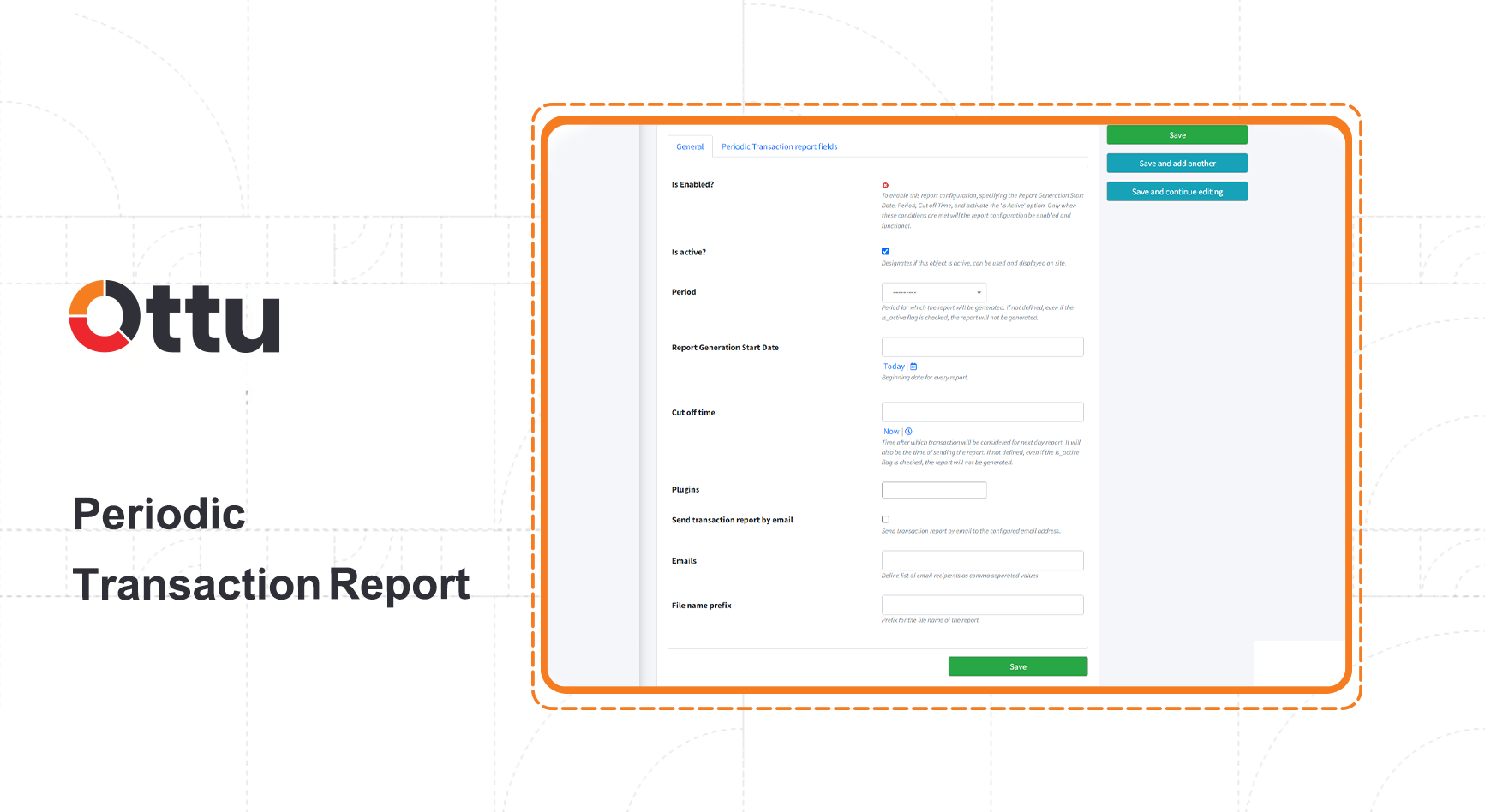
Field Descriptions
| Field | Description |
|---|---|
| Is Enabled? | The report only becomes active once the Cut-off Time is defined and Is Active is enabled |
| Is active? | Whether this report configuration is currently active and visible on the dashboard |
| Cut-off time | The time at which transactions are evaluated for inclusion in the next report. Also determines when the report is sent. If not set, the report will not generate even if Is Active is enabled |
| Plugins | Which plugin the report covers |
| Send transaction report by email | When checked, the report is automatically emailed |
| Emails | The recipient email addresses for email delivery |
| Send transaction report by SFTP | When checked, the report is securely transferred via SFTP |
| SFTP server host address | The hostname or IP address of the SFTP server |
| SFTP upload path | The directory on the SFTP server where reports are uploaded |
| SFTP server username | The username for SFTP authentication |
| SFTP server password | The password for SFTP authentication |
| File name prefix | A prefix added to the report filename |
| Add breakdown columns | When checked, columns like refunded_amount and voided_amount appear as separate columns in the report, giving you more granular financial data |
Report Fields
Both periodic and flexible reports support custom fields. You can add extra data columns to tailor reports to your business needs.
Adding Report Fields
- Open the relevant report configuration
- Go to the Transaction Report Field tab (or Periodic Transaction Report Field tab)
- Click Add another transaction report fields
- Select a field type from the dropdown
There are four field types, each pulling data from a different source:
Config Fields
Config fields draw values from configured items within a customizable dropdown list.
| Required Information | Description |
|---|---|
| Field | Select from available config fields in the dropdown. You can add or remove built-in or custom fields to match your reporting needs |
Static Fields
Static fields contain fixed values that remain the same across all generated reports — useful for constants or reference data.
| Required Information | Description |
|---|---|
| Static value | The constant value that appears in every generated report |
Gateway Response Fields
Gateway response fields capture data returned by the payment gateway after processing a transaction — such as authorization codes and gateway-specific details.
| Required Information | Description |
|---|---|
| Gateway response keys | The keys from the payment gateway's response dictionary (key-value pairs) that you want included in the report |
Common Fields
Common fields are standard transaction data elements (e.g., payment_date) that are consistent across all report types and are not sourced from gateways, static values, or plugin configurations.
Shared Field Settings
All field types require these additional settings:
| Field | Description |
|---|---|
| Is active | Whether this field is included in the generated report |
| Label [en] | Custom English label for the field column |
| Label [ar] | Custom Arabic label for the field column |
| Name | Internal field name used for backend validation (not displayed to users) |
| Order | The column position of this field in the generated report |
What's Next?
- Payment Management — Track and search transactions from the dashboard
- Webhooks Configuration — Set up real-time event notifications
- Plugins — Configure the plugins that reports can be scoped to