Transaction Insights
Ottu provides detailed transaction tables and visual dashboard charts so you can monitor, analyze, and manage your payments from one place.
Transaction Table
Every installed plugin includes a transaction table that gives you full visibility into your transaction history. From the transaction table, you can perform payment operations such as voiding, refunding, and capturing.
To access the transaction table, navigate to the Transactions tab located under each installed plugin.
Proxy Fields
Ottu lets you customize which columns (headers) appear in each plugin's transaction table, so you can surface the information that matters most to your business.
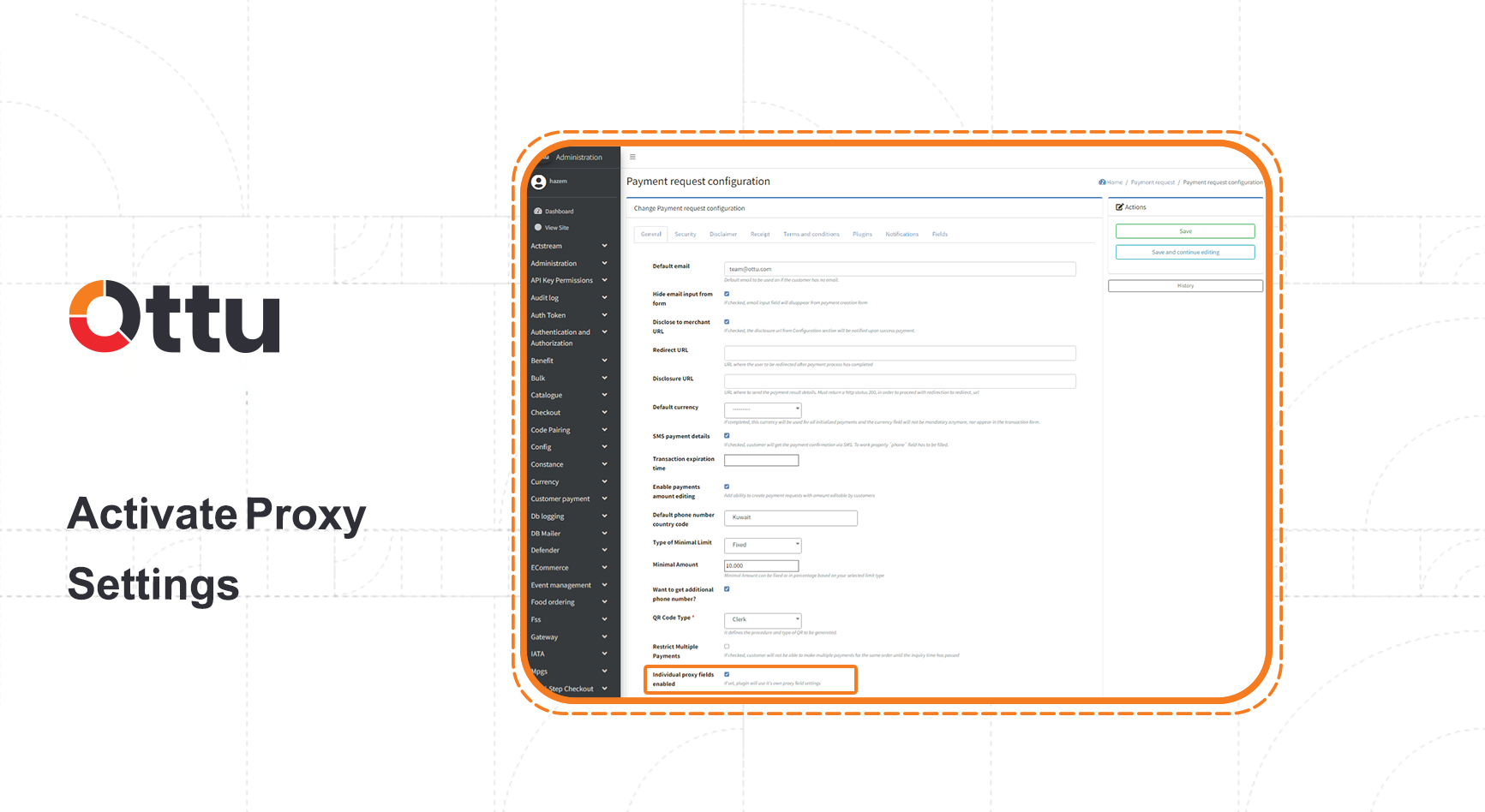
How to Activate Headers Settings
- From the Ottu Dashboard, navigate to the Administration Panel.
- Access the Plugin Config for the desired transaction table.
- Enable the Individual Proxy Fields option by ticking the checkbox.
Managing the Header List
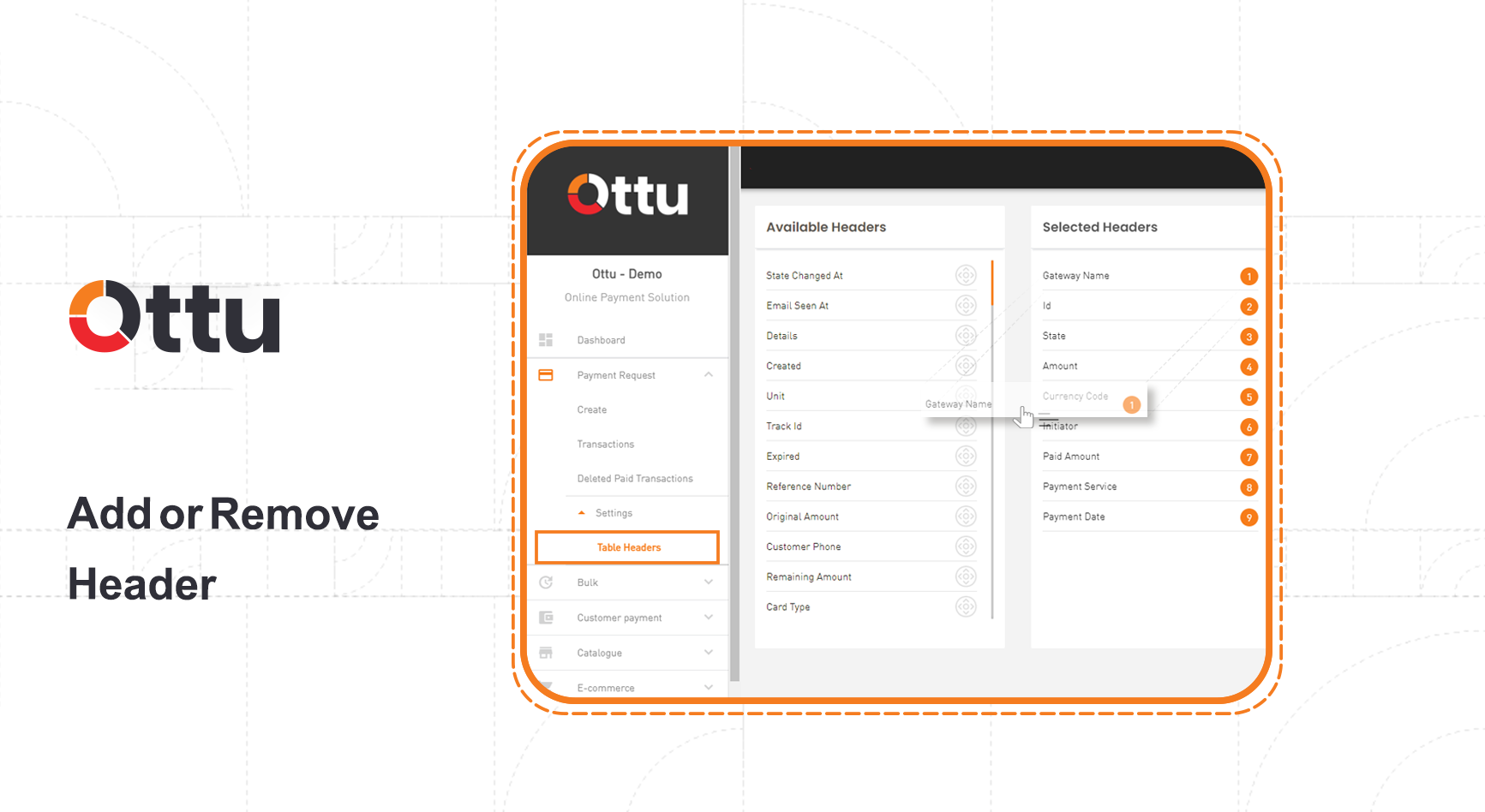
- From the Ottu Dashboard, go to the desired Plugin tab.
- Access Settings.
- In the Table Headers section, add or remove headers by dragging them between the available and selected columns (right to left or vice versa).
Child Table Transactions
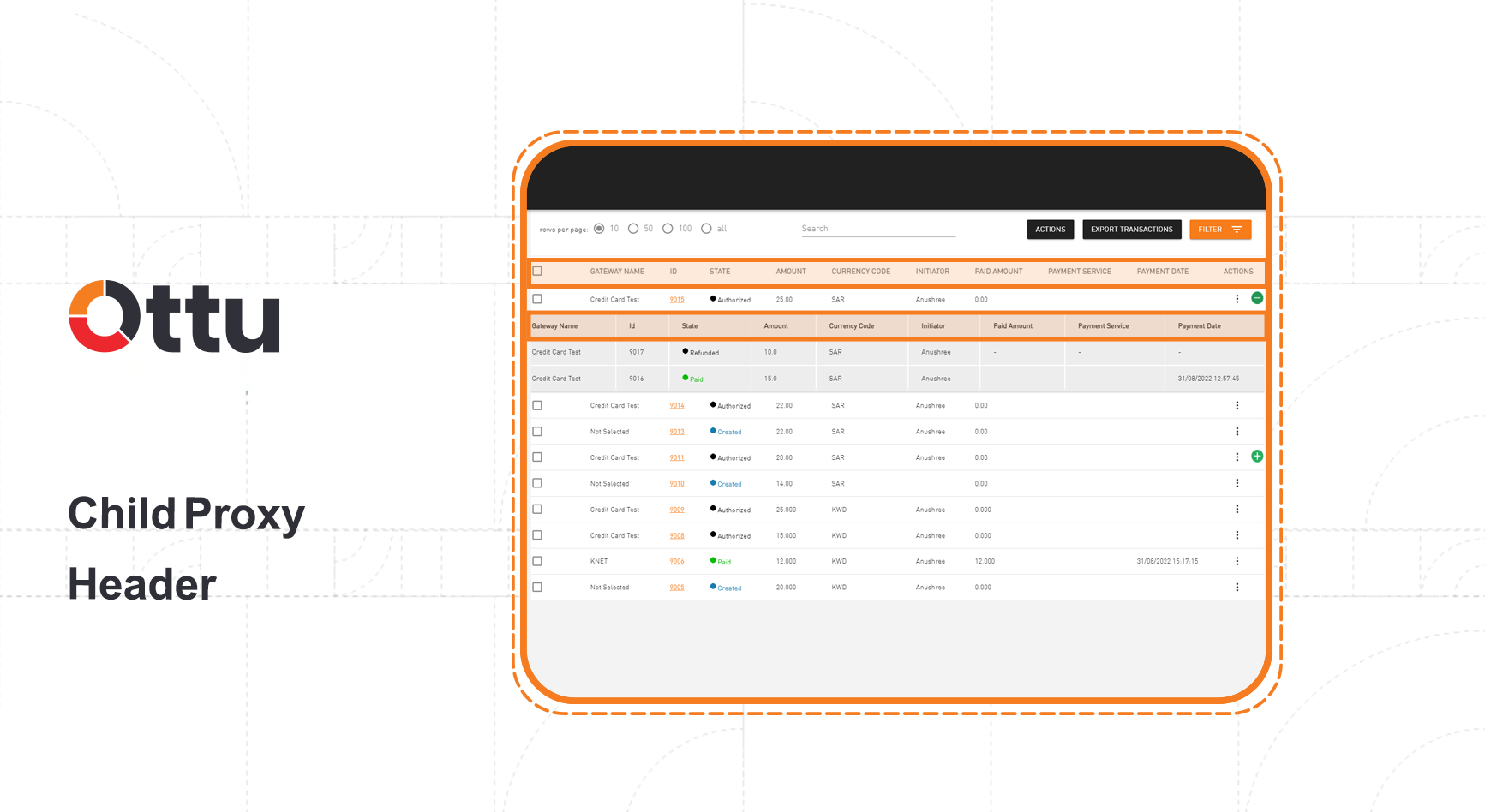
Child transactions are generated from capture, refund, or void operations. These transactions are linked to the original payment transaction (the parent transaction) and displayed beneath it. Child transaction headers inherit from the parent transaction's headers for consistency.
Amounts Breakdown
The transaction table supports multiple amount-related columns. You can add or remove these via proxy fields. Each amount header serves a specific role in the payment process:
Amount
The initial amount when the transaction is first created.
Settled Amount
The amount in the same currency as the initial amount.
- Editable amount: The amount the customer entered at checkout. If the customer pays the full required amount, this equals the initial amount.
- Non-editable amount: The settled amount is the same as the initial amount.
Paid Amount
The amount transferred or credited to the merchant's bank account.
- For purchase transactions: The settled amount including any fee.
- For authorize transactions: The total amount captured by staff.
Whether a transaction is a purchase or authorization is determined by the payment gateway configuration -- specifically the gateway settings (MID) operation configuration.
Remaining Amount
The difference between the initial Amount and the Settled Amount:
Remaining Amount = Amount - Settled Amount
Fee
An additional amount added on top of the initial amount, which the customer pays.
Depending on currency configuration and the selected payment gateway, fees may or may not apply to transactions in the default or foreign currency.
Refunded Amount
The amount returned to the customer's bank account, deducted from the paid amount.
Voided Amount
The full transaction amount credited back to the customer's bank account when a void (rollback) is completed. Voiding is only applicable for authorized payments that have not been fully or partially captured.
- Capture can include the entire amount (settled amount + fee).
- Refund can only return the settled amount (without the fee).
- Void nullifies the entire amount, including any associated fee.
Dashboard Charts
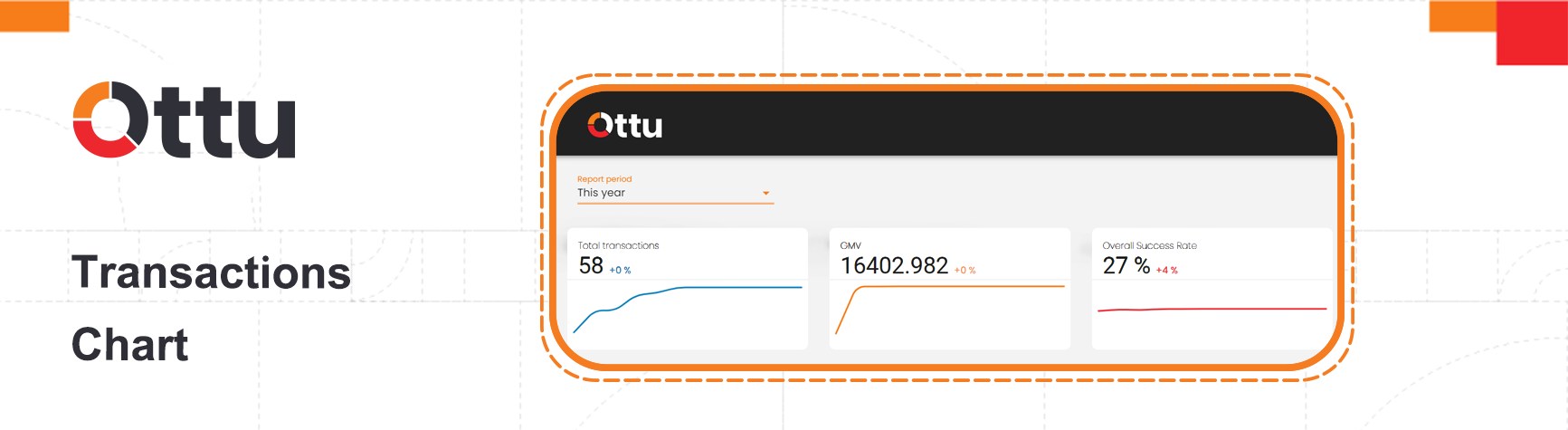
The Ottu Dashboard provides visual charts so you can track transactions and sales performance at a glance. These charts update in real time and are available from the main dashboard.
Total Transactions
Shows the total transaction value and overall success rate across different time periods.
Average Transaction
Displays the average transaction value over the selected period.
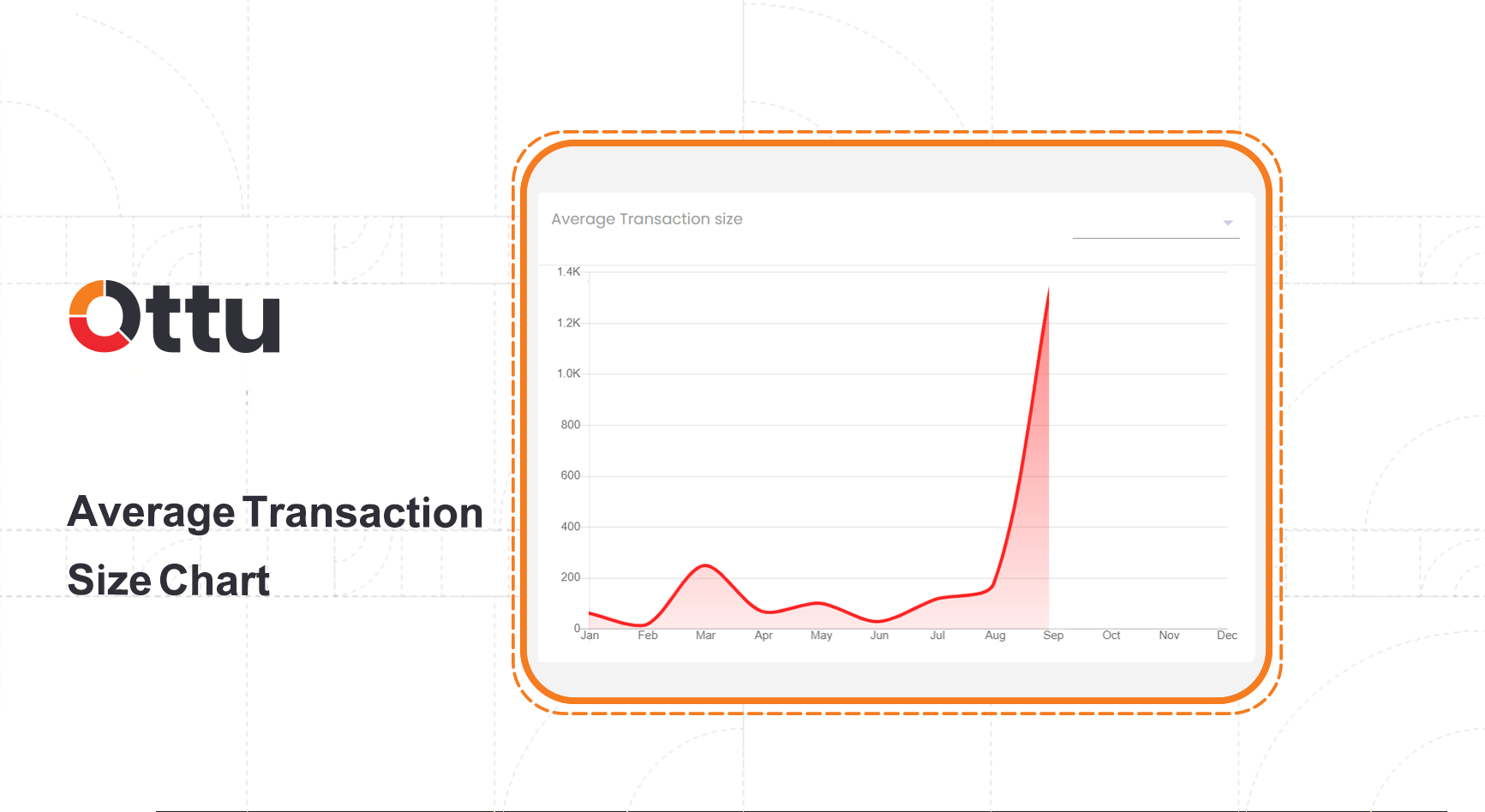
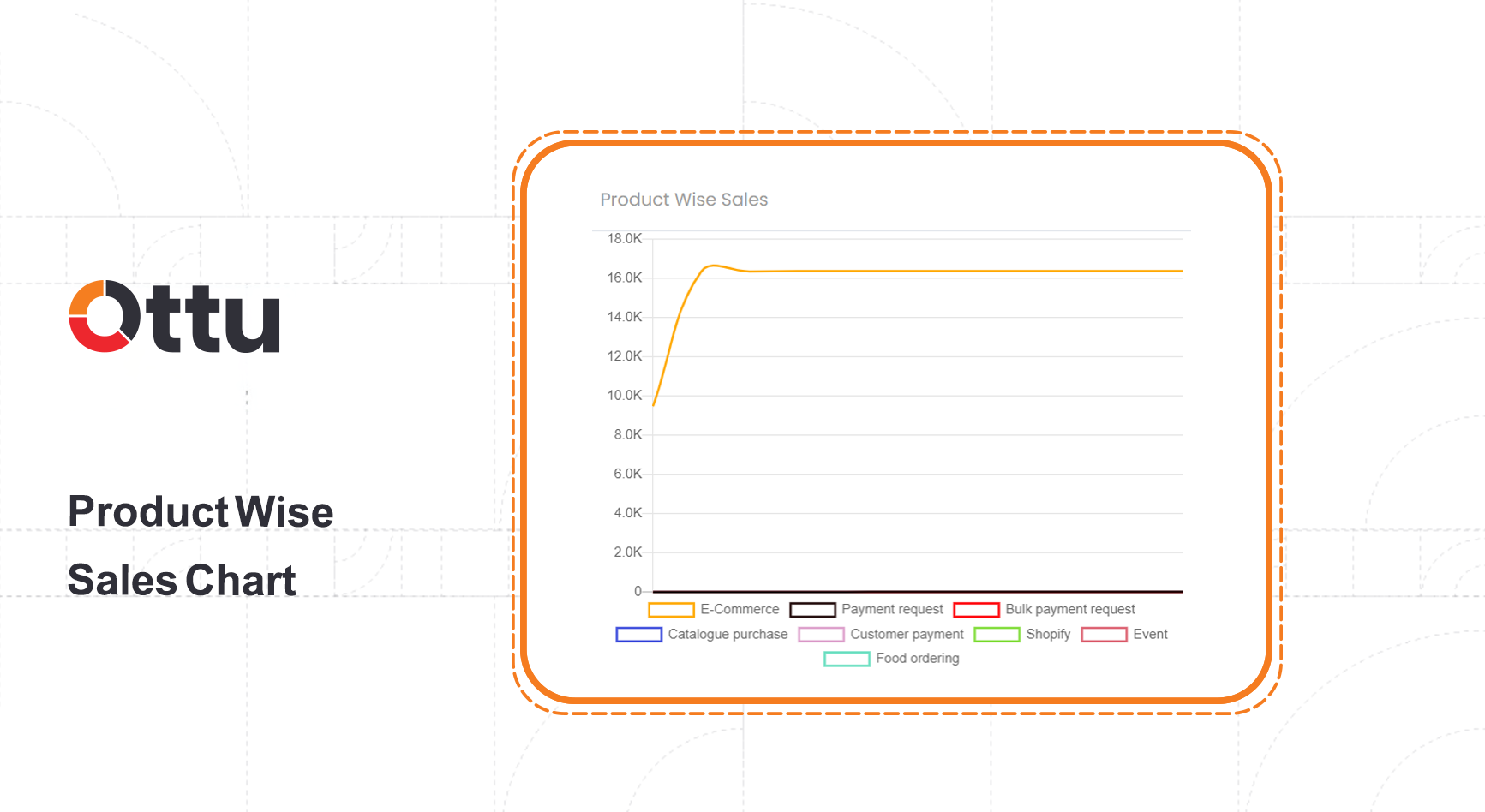
Product-Wise Sales
Breaks down sales by product, helping you identify top performers.
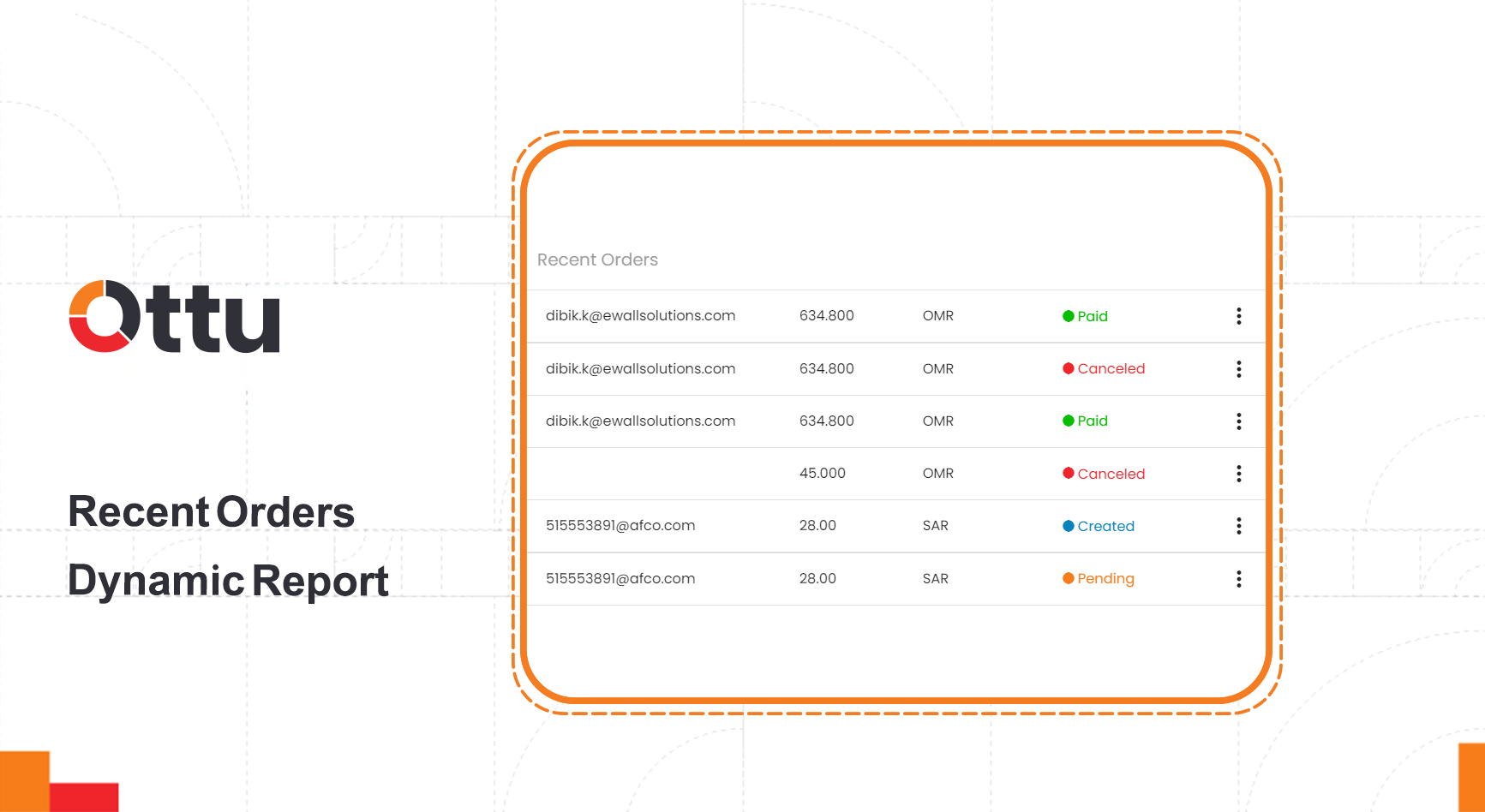
Recent Orders Report
Lists the most recent orders for quick review.
What's Next?
- Transaction States -- Understand what each payment state means
- Search & Filter Payments -- Find specific transactions quickly
- Operations -- Perform refunds, voids, and captures
- Transaction Reports -- Export your transaction data