Global Configuration
Global configuration controls the core identity and behavior of your Ottu installation. These settings affect branding, security, contact information, and system-wide features across your entire payment platform.
Accessing Global Configuration
- Open the Ottu Dashboard
- Click the three dots in the top-right corner to open the Administration Panel
- Navigate to Config > Configuration

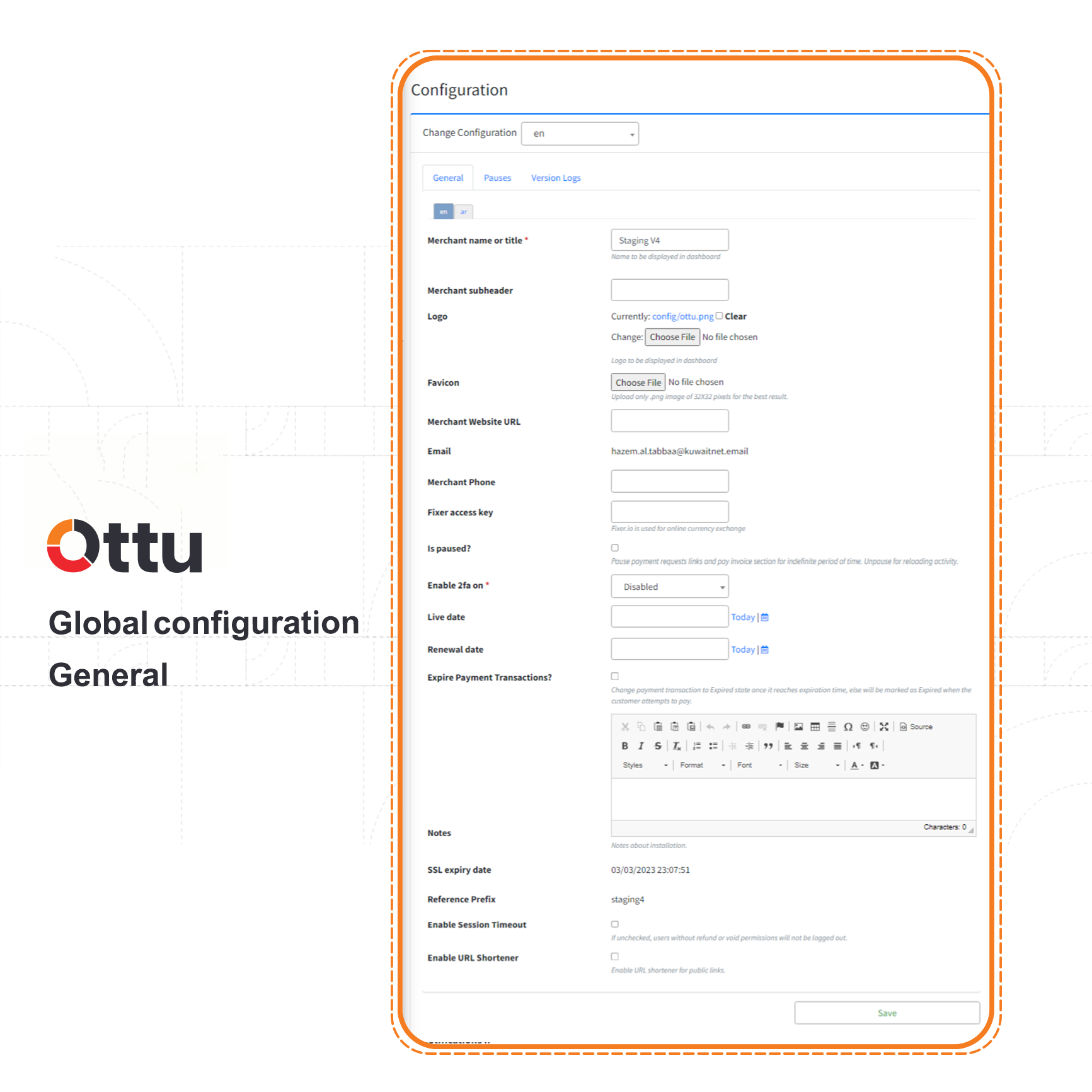
Configuration Fields
Merchant Identity
| Field | Description |
|---|---|
| Merchant name or title | The name displayed on your dashboard and customer-facing pages |
| Merchant subheader | A short tagline or additional information shown below your merchant name |
Branding
| Field | Description |
|---|---|
| Logo | Your business logo, displayed on the dashboard and checkout pages |
| Favicon | The small icon shown in browser tabs and bookmarks next to your site name |
Connectivity
| Field | Description |
|---|---|
| Merchant website URL | The URL of your business website |
| The email address that receives permission authorization requests. Typically, this is the installation owner's email | |
| Merchant phone | Your business contact phone number |
Currency Exchange
| Field | Description |
|---|---|
| Fixer access key | The API key used to retrieve real-time currency exchange rates from Fixer.io. Obtain your key by creating a Fixer.io account |
For the Fixer.io exchange service to work, you must enable online conversion: go to Administration Panel > Currency > Currency Exchange Configs and set the Work as field to Online. See Currencies for full details.
Control & Security
| Field | Description |
|---|---|
| Is paused | Temporarily freezes all payment request links across your installation. Useful during maintenance or when you need to stop accepting payments temporarily |
| Enable 2FA | Activates two-factor authentication for dashboard logins |
When 2FA is enabled, a one-time passcode (OTP) is sent to your email for every dashboard login. This adds an extra layer of security by requiring the code in addition to your password.
Dates & Expiration
| Field | Description |
|---|---|
| Live date | The date of your first live transaction |
| Renewal date | The date when your Ottu subscription ends, as specified in your contract |
| Expire payment transaction | When enabled, payment request URLs expire after a set time period |
- When a payment expires, it transitions to the Expired state and the payment URL becomes invalid. See Transaction States for details.
- The default expiration period is 24 hours. To change it: Administration Panel > Payment Request > Payment Request Configuration > Transaction Expiration Time.
Notes
| Field | Description |
|---|---|
| Notes | Free-text area for any additional configuration notes or internal documentation |
Security
| Field | Description |
|---|---|
| SSL expiry date | The expiration date of your SSL certificate, automatically populated based on the installation date. SSL ensures secure communication between your server and Ottu |
Reference Prefix
| Field | Description |
|---|---|
| Reference prefix | A unique prefix added to transaction track IDs to prevent duplicates when multiple Ottu installations share the same payment gateway |
If you operate multiple Ottu installations connected to a single payment gateway, at least one installation should have a reference prefix. This ensures each installation generates unique track IDs, preventing conflicts in tracking and reporting.
User Experience
| Field | Description |
|---|---|
| Enable session timeout | When enabled, users without refund/void permissions are automatically logged out after the defined session timeout period |
| Enable URL shortener | Activates the URL shortener for public payment links. See URL Shortener Configuration for setup details |
What's Next?
- Webhooks Configuration — Set up real-time notifications for payment and operation events
- API Keys — Generate API keys for developer integration
- Currencies — Configure currency exchange and multi-currency support
- Plugins — Manage payment request and e-commerce plugins